A tour of the screens
Every page of Ninaivu, with what it is for. The pictures are from a sample
library of generated scenes (tools/make_sample.py), not anybody's
photographs; the layout and the words are exactly what a household sees.
Ninaivu has two faces on two ports: the family app, where everyone looks at the library, and the console, where the administrator runs it.
The family app
Choosing who you are
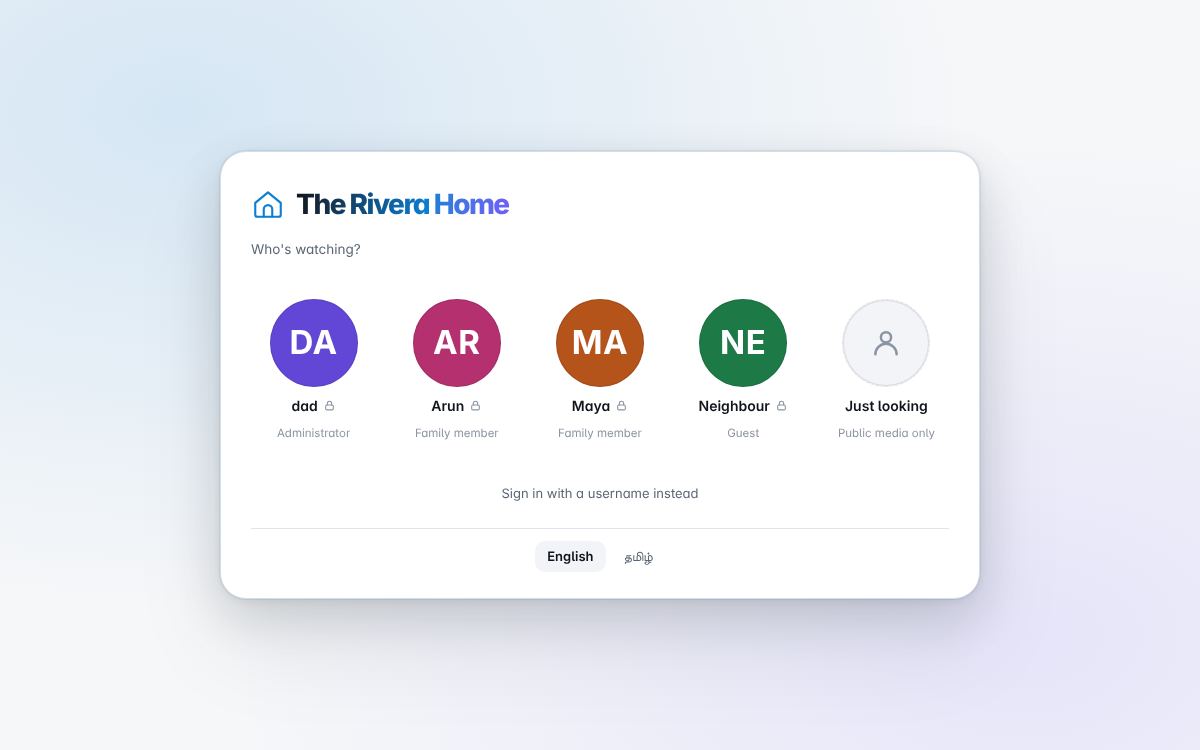
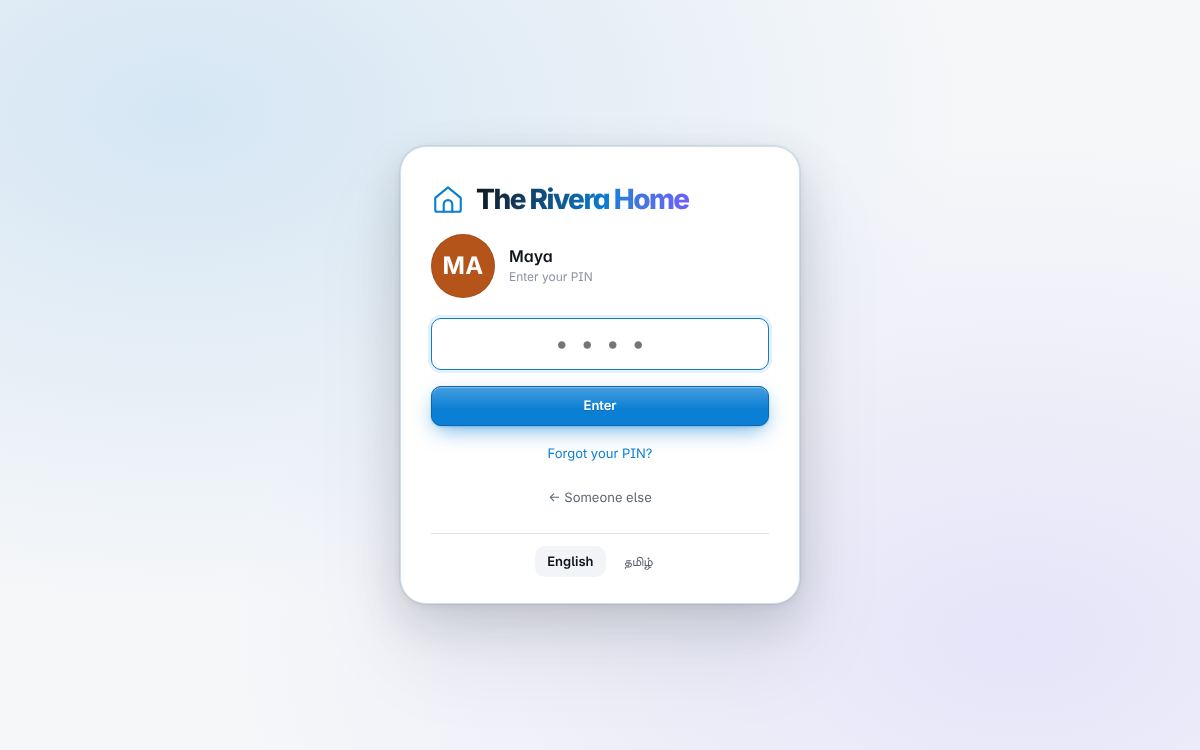
The family app opens on the household's profiles. A family member taps their tile and enters a PIN; a guest signs in with a password; with open browsing on, a visitor can look at what is public without signing in at all. The name at the top is the household's own — here "The Rivera Home".
The gallery
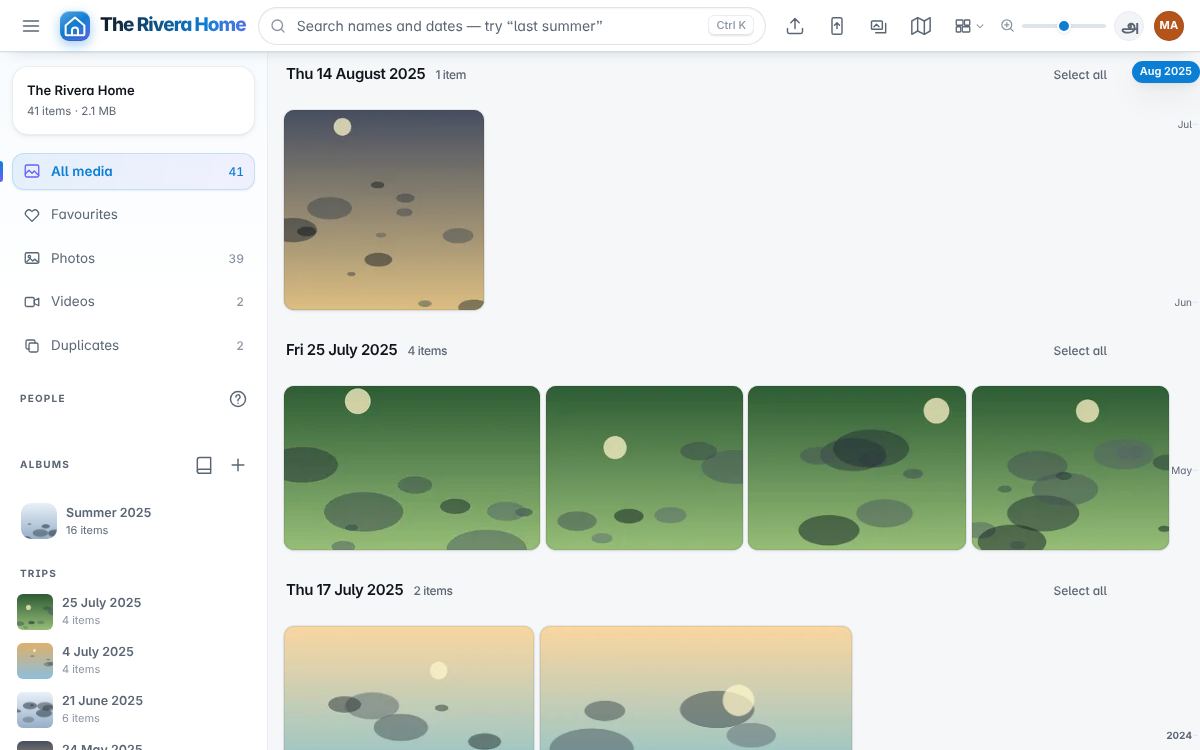
Everything this person may see, newest first, grouped by day, with the timeline down the right edge for jumping across years. The left column is the library's shape: photos, videos, favourites, duplicates the index found, albums people made, trips the dates suggest, then years and folders. Search takes plain words ("Paris last summer"); the map button shows every located photograph grouped by place.
A photograph
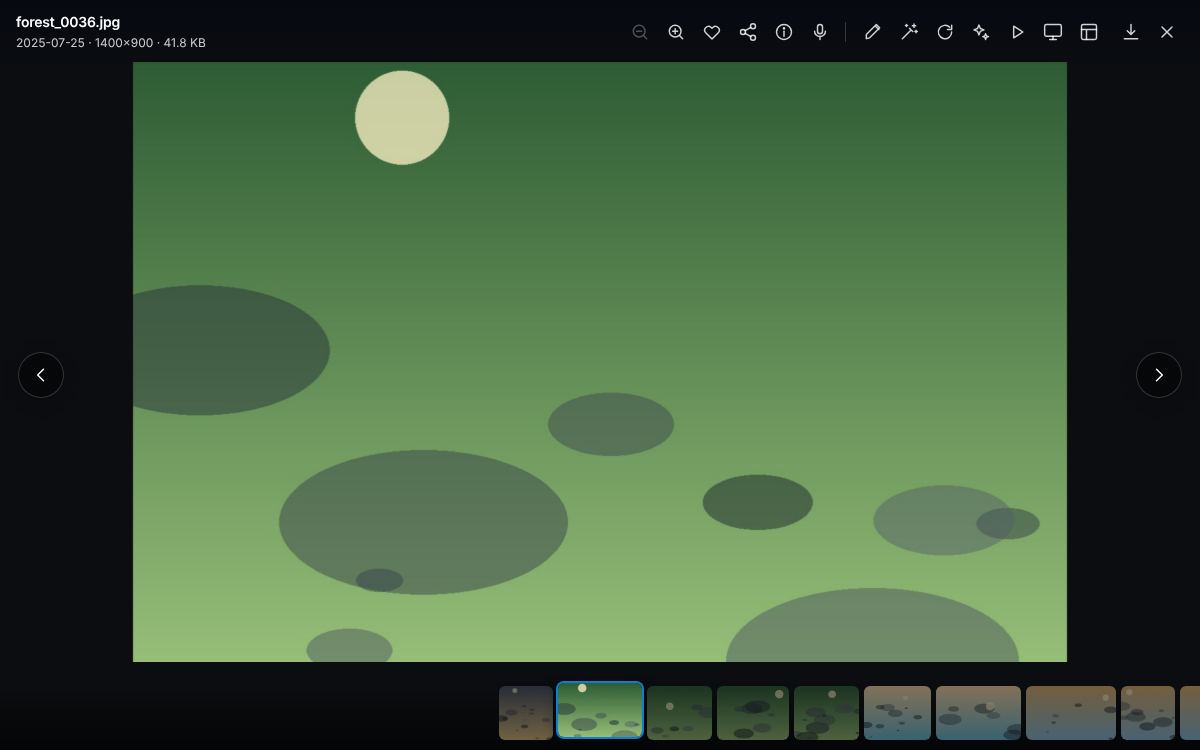
One photograph, with its date, place and people, and the actions this role may take: favourite, rotate, download, share, and open it in Sudar. What a guest sees here is narrower than what a family member sees, by design.
Sudar, the photo studio
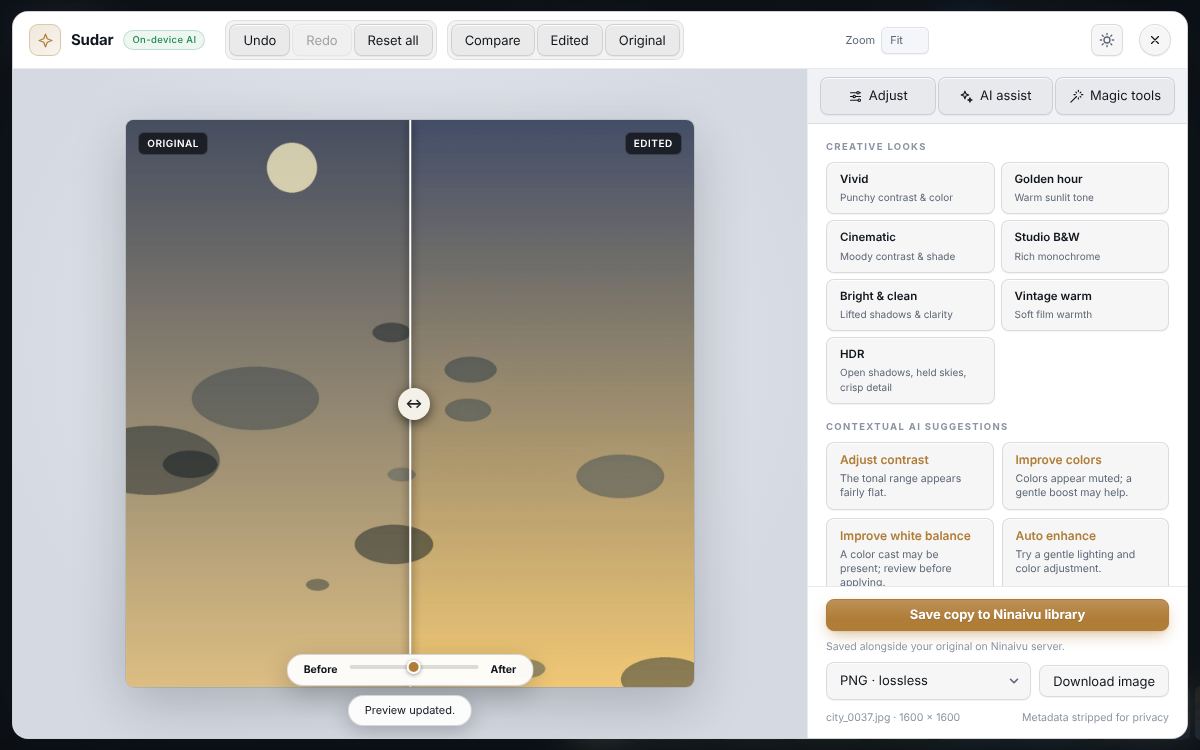
Sudar (சுடர், glow) edits a photograph in the browser: looks, suggestions measured from the picture, light and colour sliders, straightening and crops, with the original on the left and the edit on the right. The original file is never changed; a copy can be saved beside it, and a family member's copy waits for the administrator's approval like an upload.
The console
Signing in
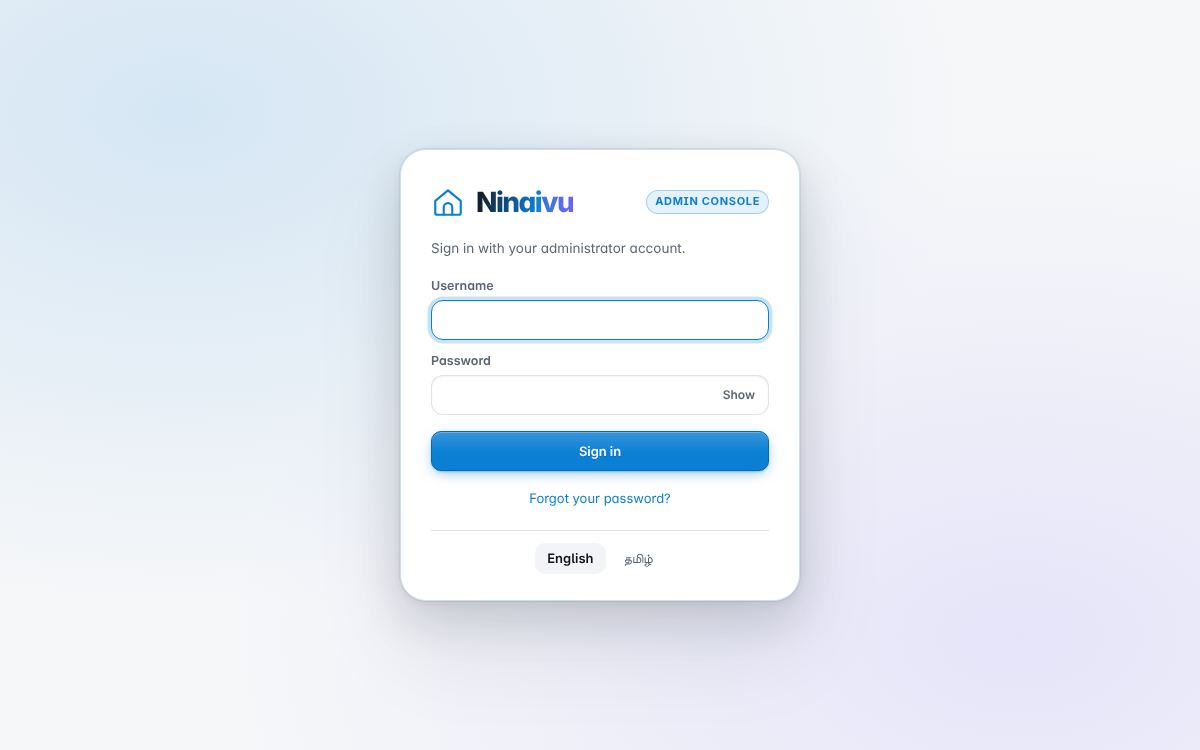
The console is for administrators only and always takes a password, never a PIN. It answers on its own port, bound to this computer by default.
The first day
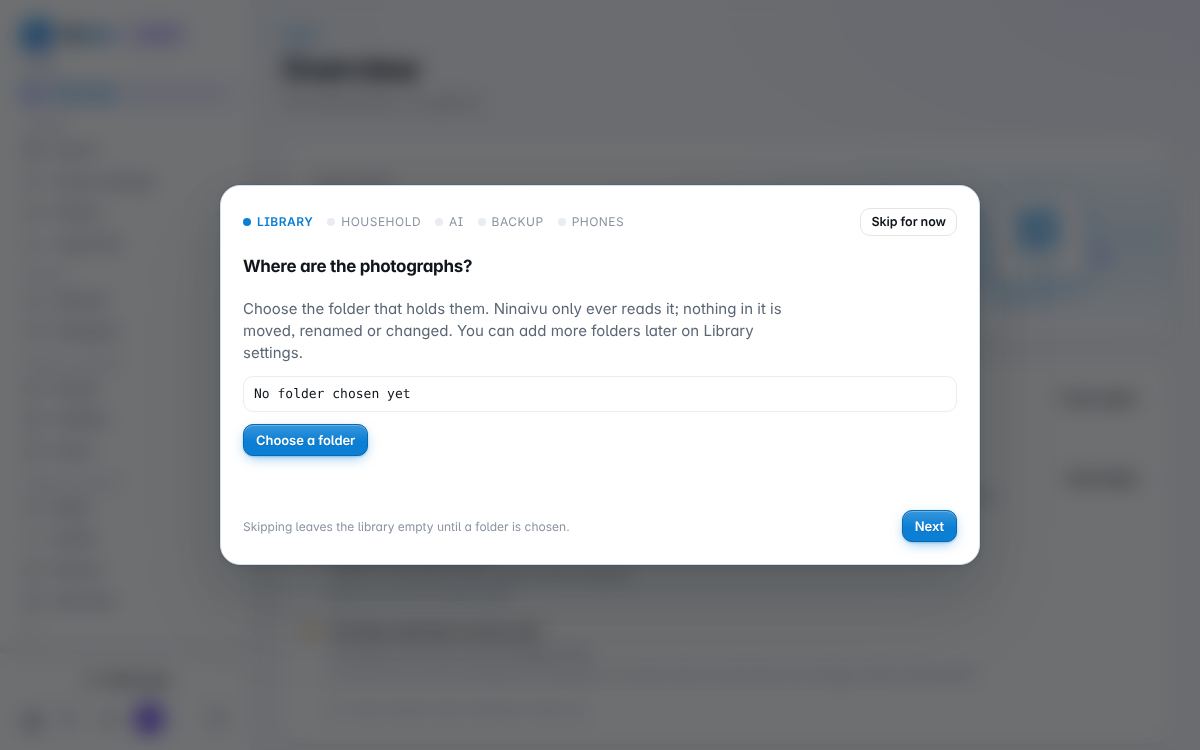
Right after the administrator is made, the console walks through the five things a new library needs: the folder that holds the photographs, the household (family members with a PIN, guests with a password), what the scan should work out by itself, a copy outside the house, and the address to open on the household's phones. Each step can be skipped, and each uses the same routes as the page it stands for, so nothing here is a second way of doing anything. It opens once.
Home — Overview
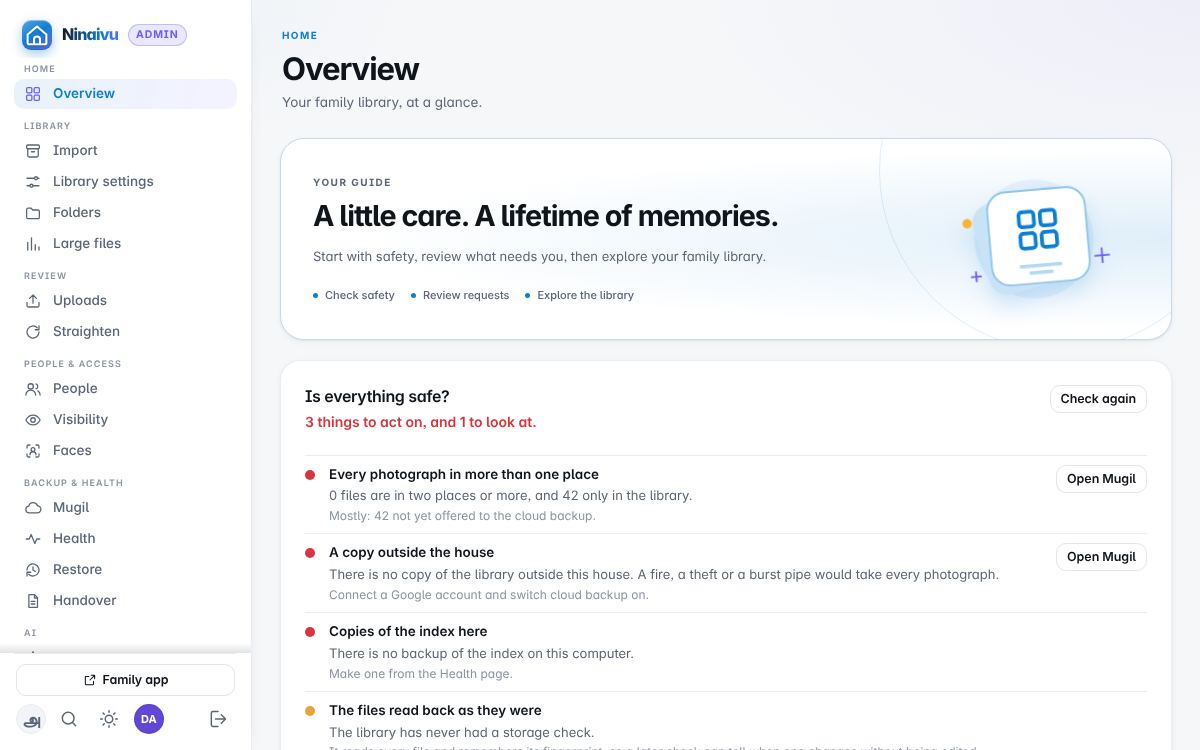
The first screen answers two questions before anything else. Is everything safe? runs the household's safety checks — a copy outside the house, a backup that restores, copies of the index, healthy drives — and says what to do about each. Needs you counts what is waiting for a person: uploads to approve, faces without a name, photographs that may be on their side, things that went wrong. Then the numbers, and what each role would actually see.
Library — Import
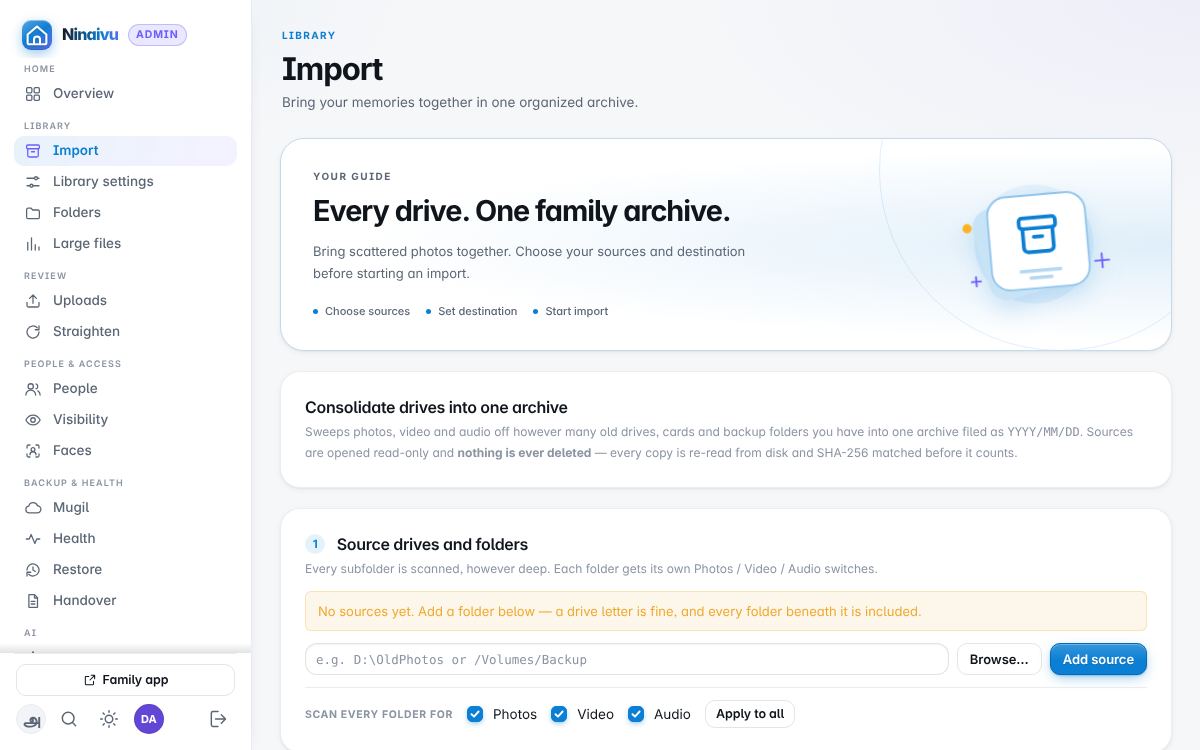
The first page after Overview on purpose: a library usually begins by
sweeping old drives, memory cards and backup folders into one archive laid
out as YYYY/MM/DD. Every file is hashed on the way in and read back to verify
the copy; duplicates are recognised by content; sources are only ever read. A
dry run shows what would happen first. A Google Photos export is understood:
its sidecars give the dates, places and descriptions, and once the archive is
in the library the page offers to make its albums.
Library — Library settings
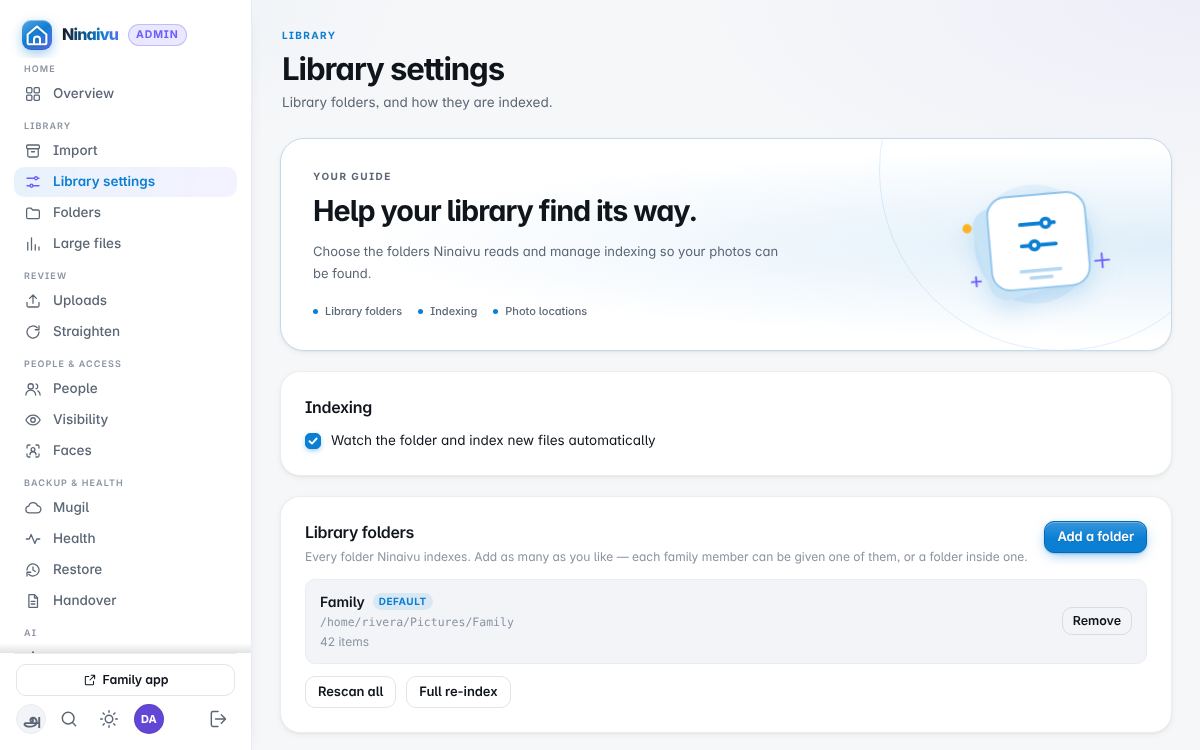
Which folders make up the library, and how they are indexed.
Library — Folders
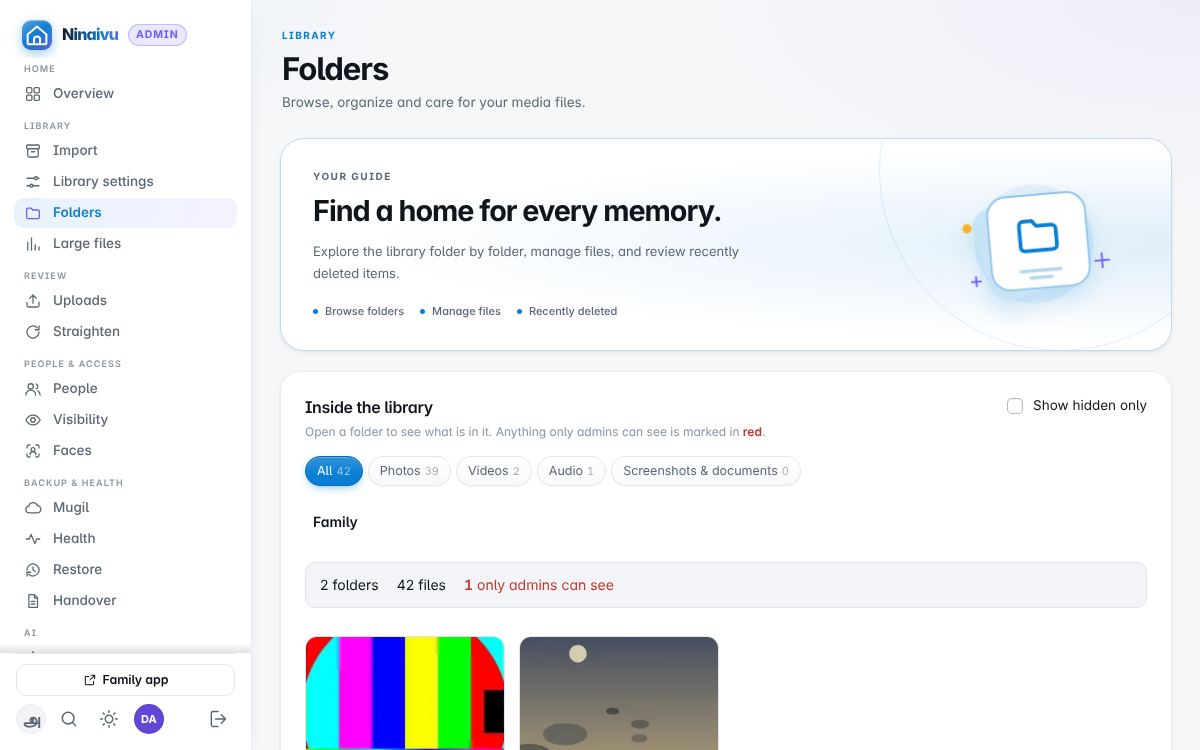
The library as folders, with what is in each, and the recycle bin. Deleting
in Ninaivu moves a file into a _deleted folder beside the library, where it
can be put back with its faces and albums intact.
Library — Large files
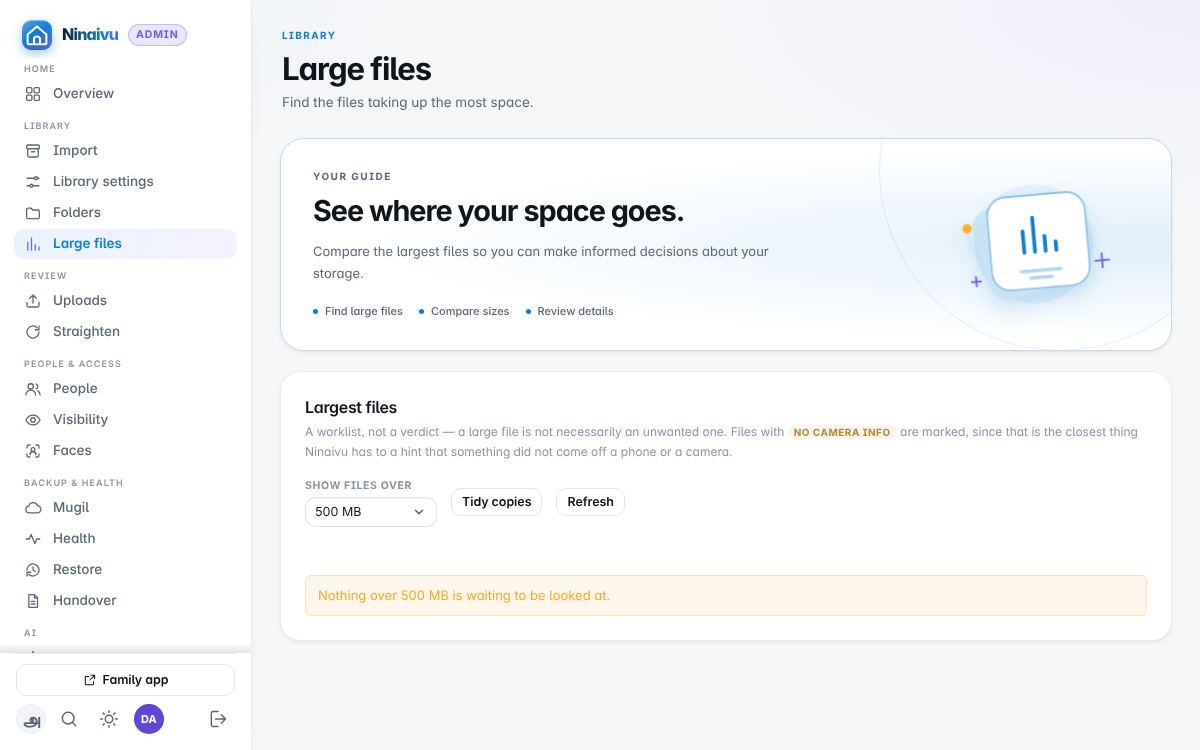
The files taking the most space, to look over once and mark as reviewed.
Tick the files (or Choose all) and use the one row of buttons above the
list. Each can be kept (stop asking) or deleted to the bin. A video can also be
compressed, the recommended choice, which saves a smaller MP4 copy (H.264, up
to 1080p) beside it, or replaced, which puts a smaller MP4 in its place after
checking it plays and keeps the original in _deleted/_originals. Both need
ffmpeg.
Review — Uploads
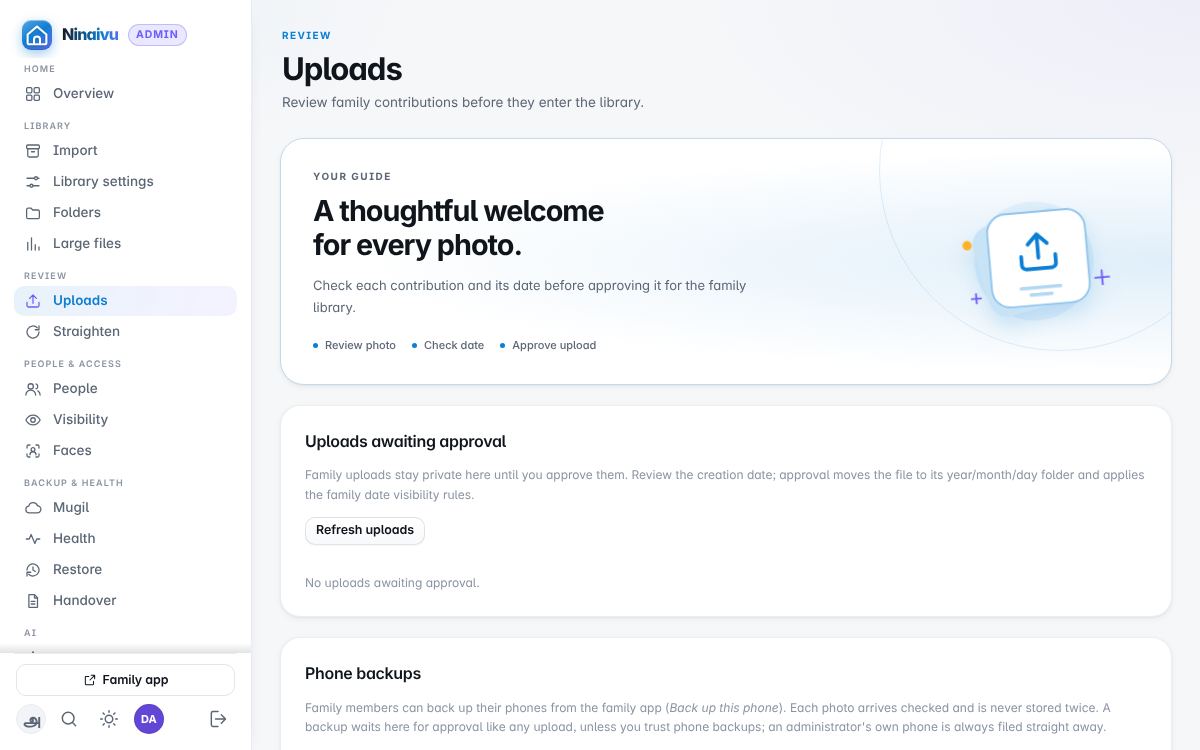
Photographs the family sent from their phones, waiting to be filed or refused, and the phones that have sent backups.
Review — Straighten
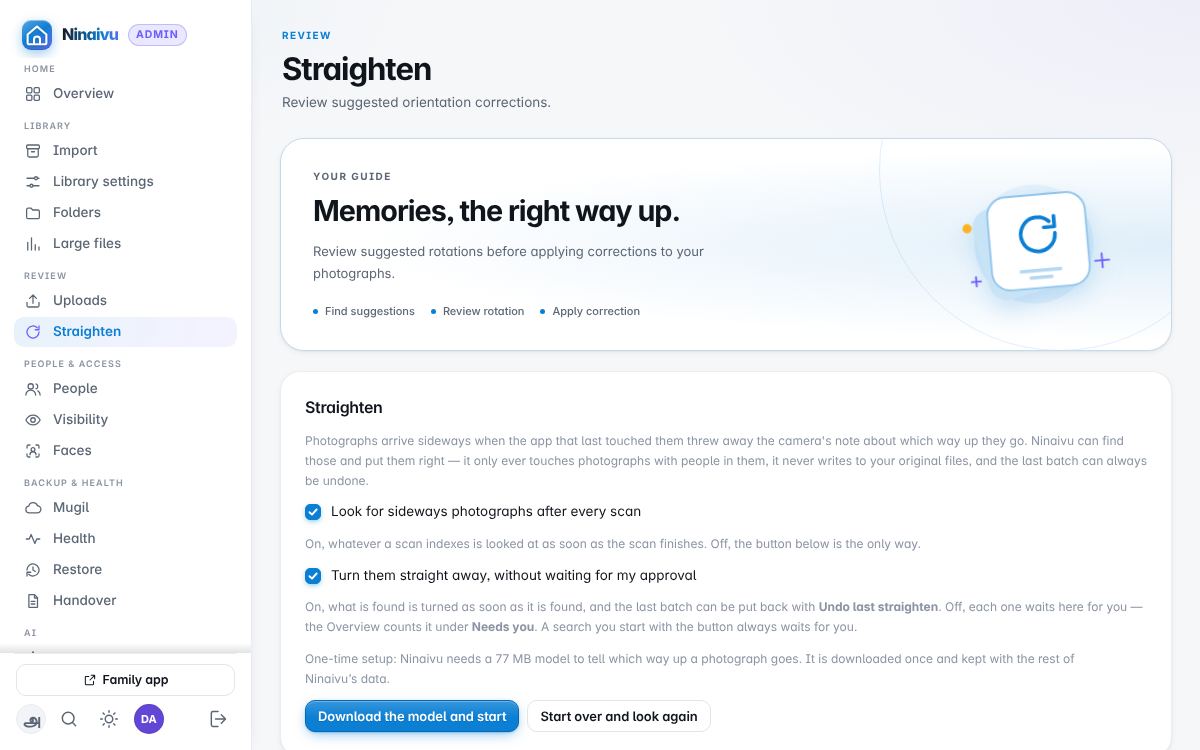
Photographs the model thinks are on their side, strongest guess first, to each shown the way it would be left: click one to skip it, and Straighten them turns the rest in one batch. It only ever suggests a quarter turn. By default the looking happens by itself after every scan, over what the scan indexed, and what it finds is turned straight away, as one batch that Undo puts back; the switches at the top turn either of those off, so that it waits here for you instead.
People & access — People
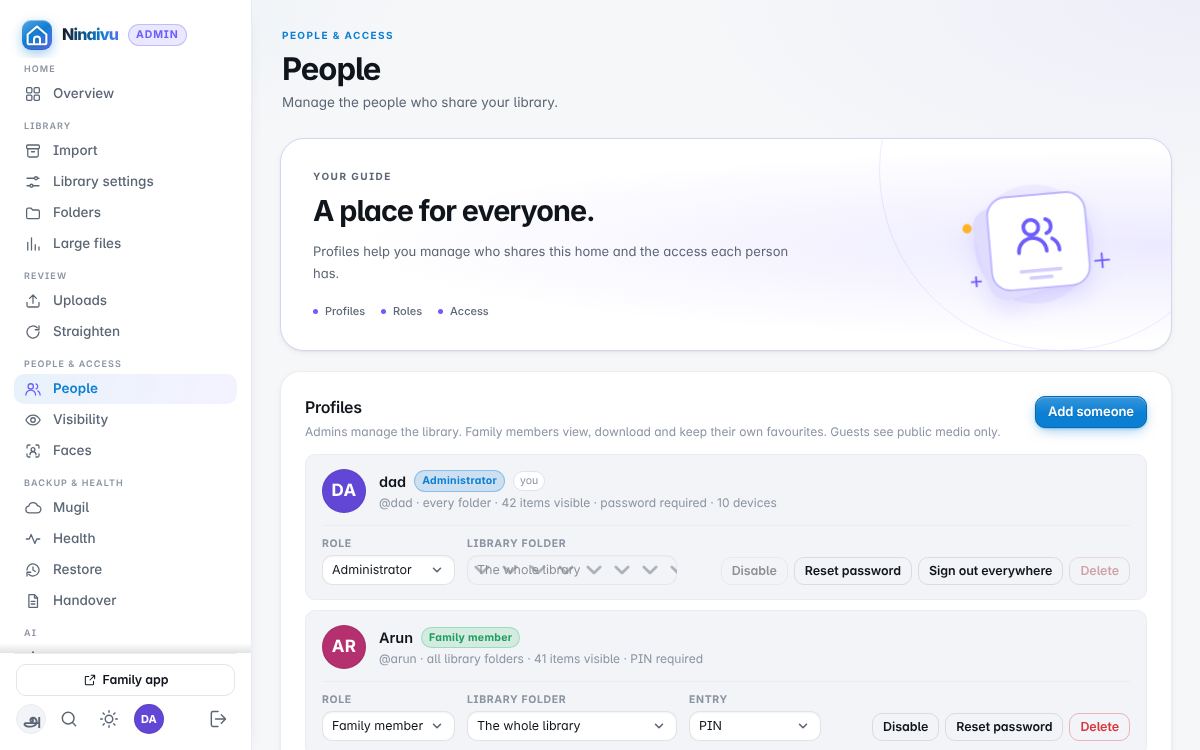
The household's profiles: one administrator, family members, guests. Each has a role, a way in (PIN, password, or a tap), and optionally a folder of their own.
People & access — Visibility
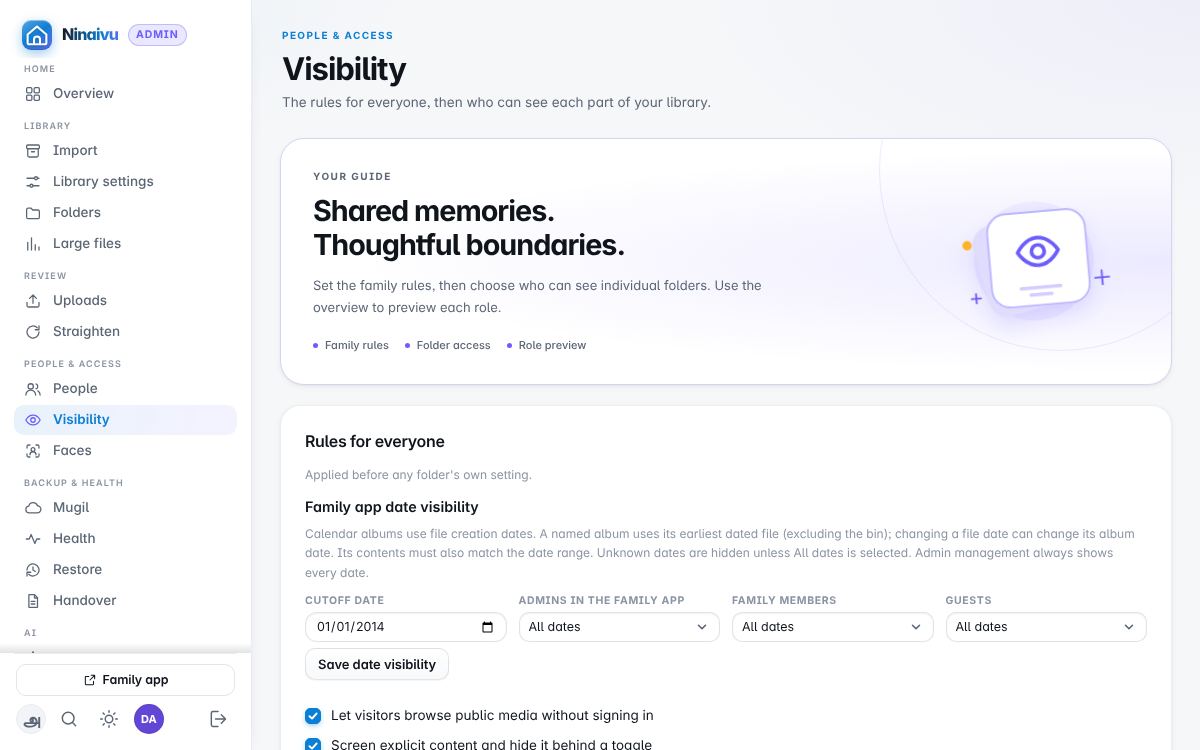
Who sees what. The rules for everyone come first — whether visitors may browse without signing in, whether explicit content is screened, how far back in time each role may look — and then each folder's own setting: everyone, family, or admins only. Every change can be undone in one step.
People & access — Faces
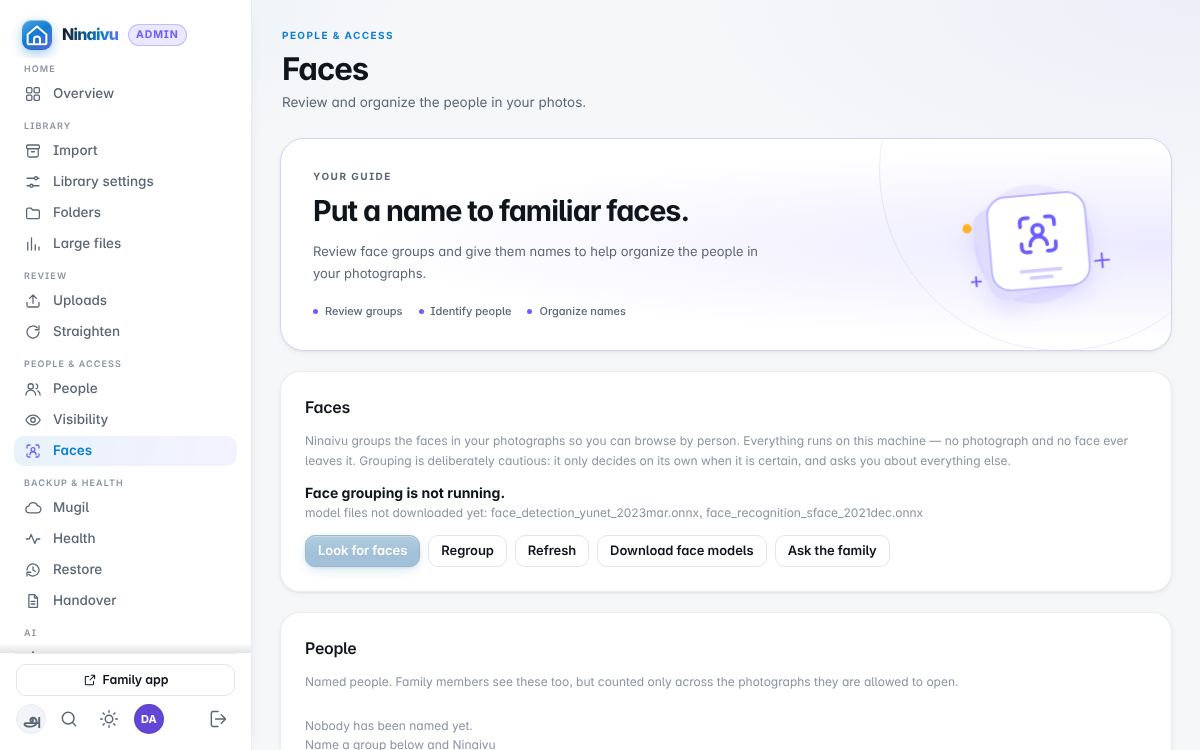
The people the face matcher found, grouped. Name one face and the rest of its group follow; groups waiting for a name are listed for a quick pass. Faces are matched on this computer; the names travel only inside Mugil's encrypted copy of the index.
Backup & health — Mugil
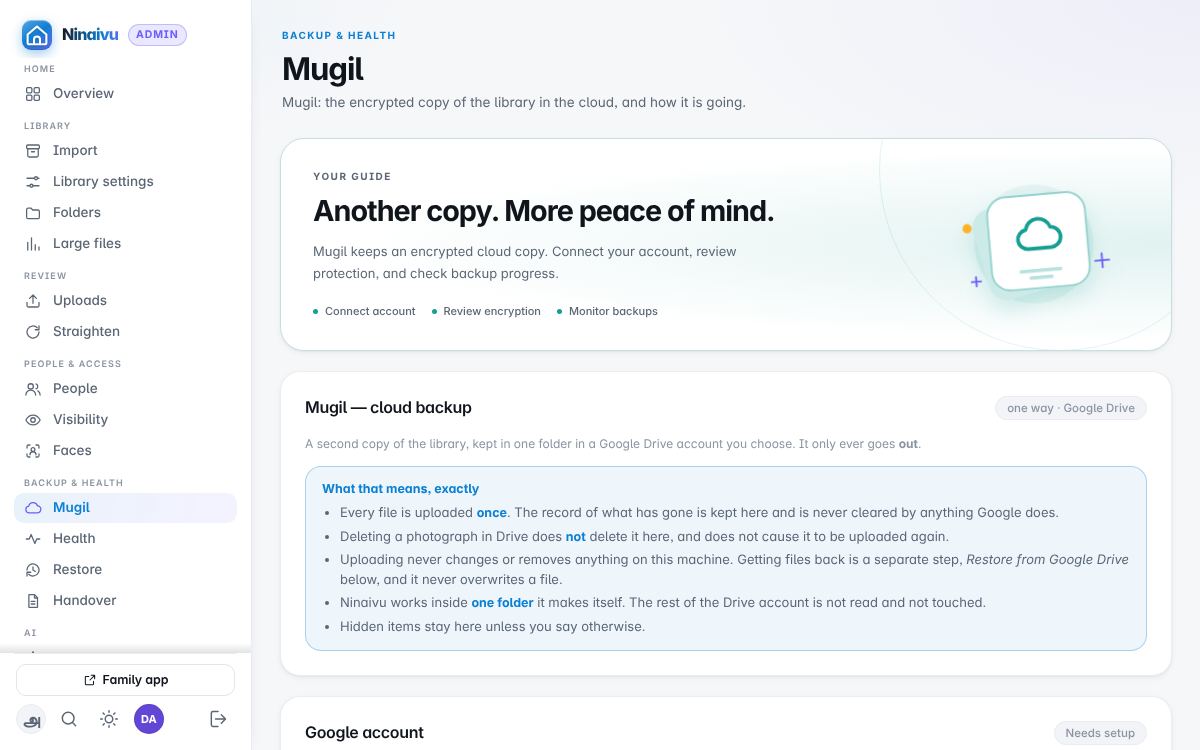
Mugil (முகில், cloud): the encrypted copy of the library on Google Drive — the account, what is sent and what is kept back, speed and hours, the encryption key and its recovery file, and the weekly test that the copy restores.
Backup & health — Health
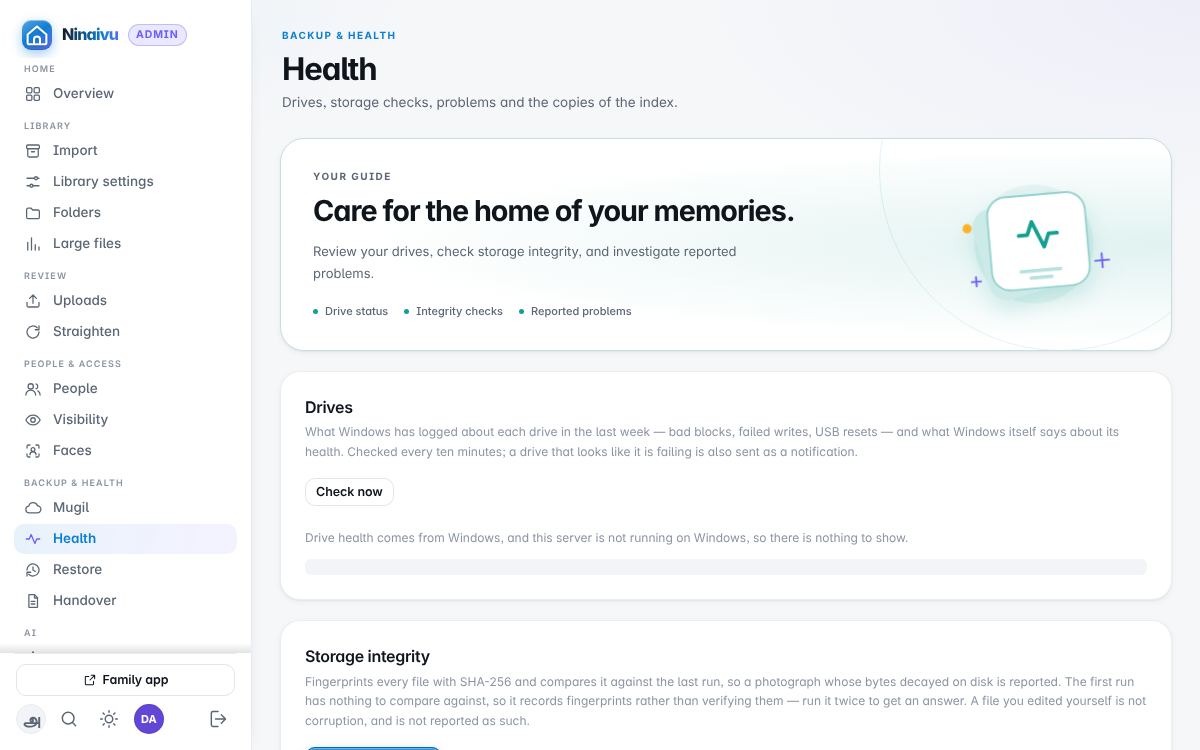
The drives and their SMART state, the storage check that reads every file back against its fingerprint, anything that went wrong since the last start, the copies of the index kept on this computer, and how the household is told when something needs them.
Backup & health — Restore
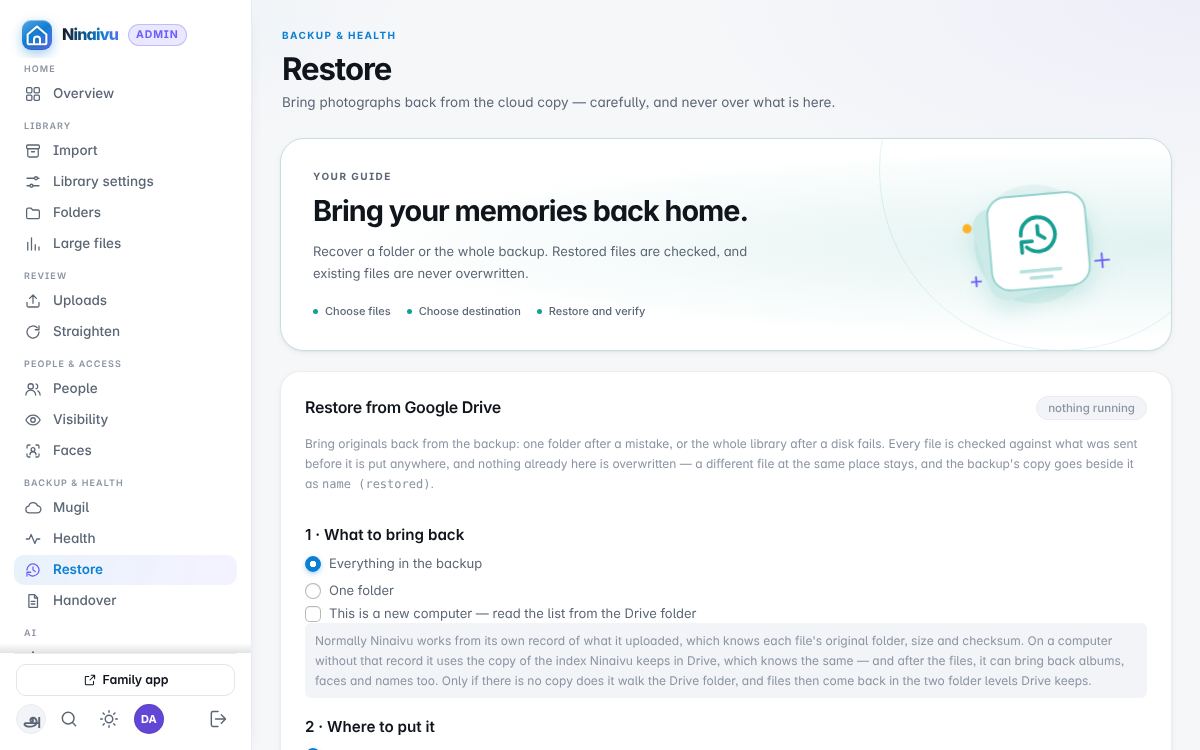
Bringing photographs back from the cloud copy, in three steps: what to bring back, where to put it, and the encryption key. Nothing here ever overwrites a file that is already there.
AI — AI models
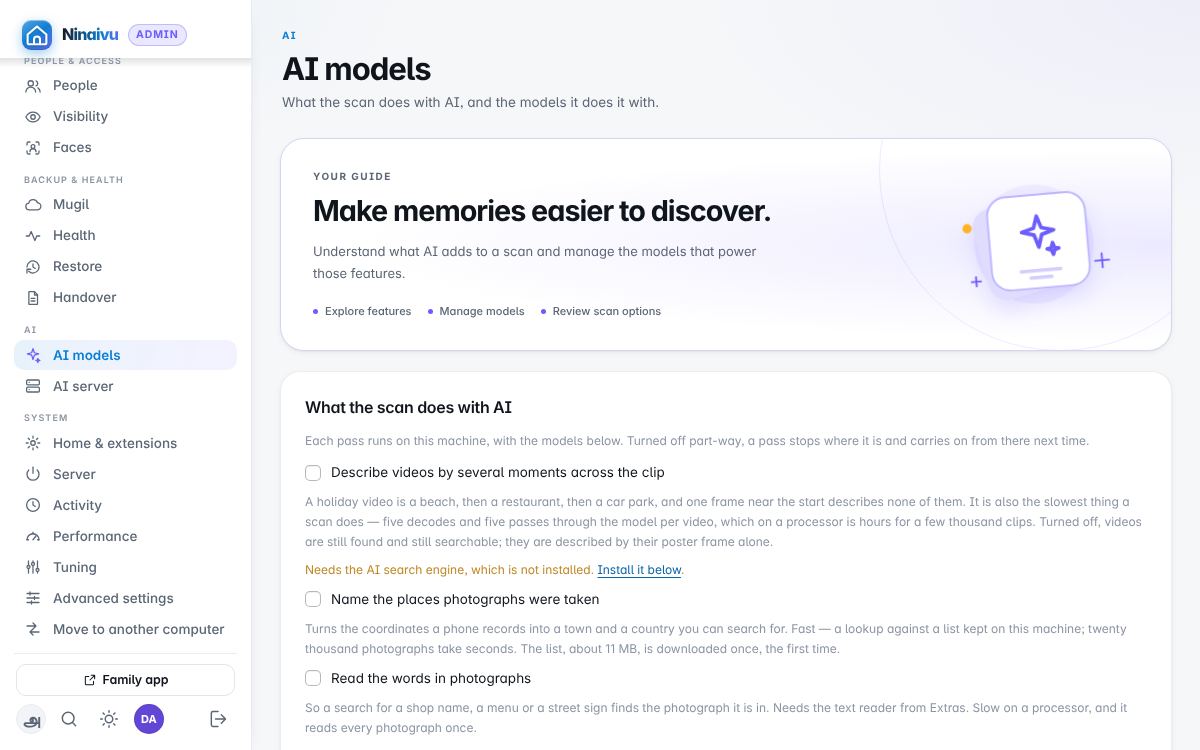
What the scan does with AI — naming places, reading text, finding faces, describing videos by several moments — each switch saying which model it needs and whether that model is here, then the models themselves with their downloads. Everything on this page runs on this machine.
AI — AI server
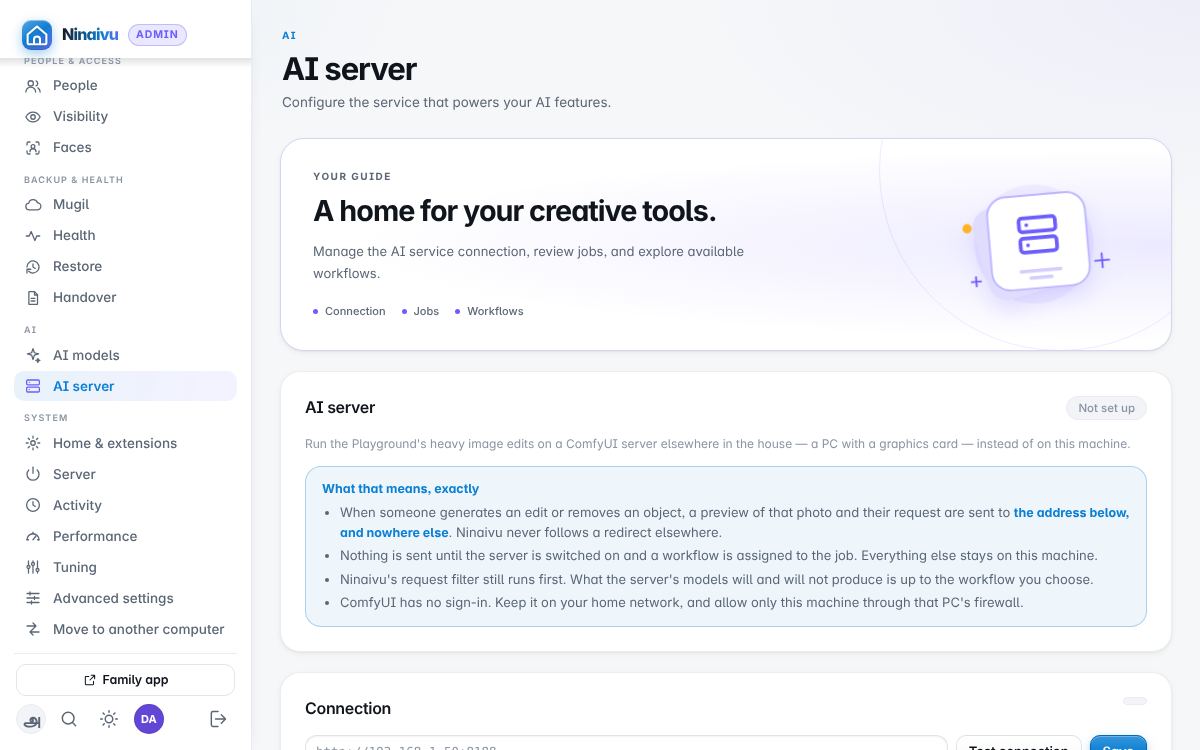
For a household with a second, stronger computer: hand the heavy jobs (generative edits, object removal, upscaling) to it. This page belongs to the Creative Studio extension and appears only while that extension is on.
System — Home & extensions
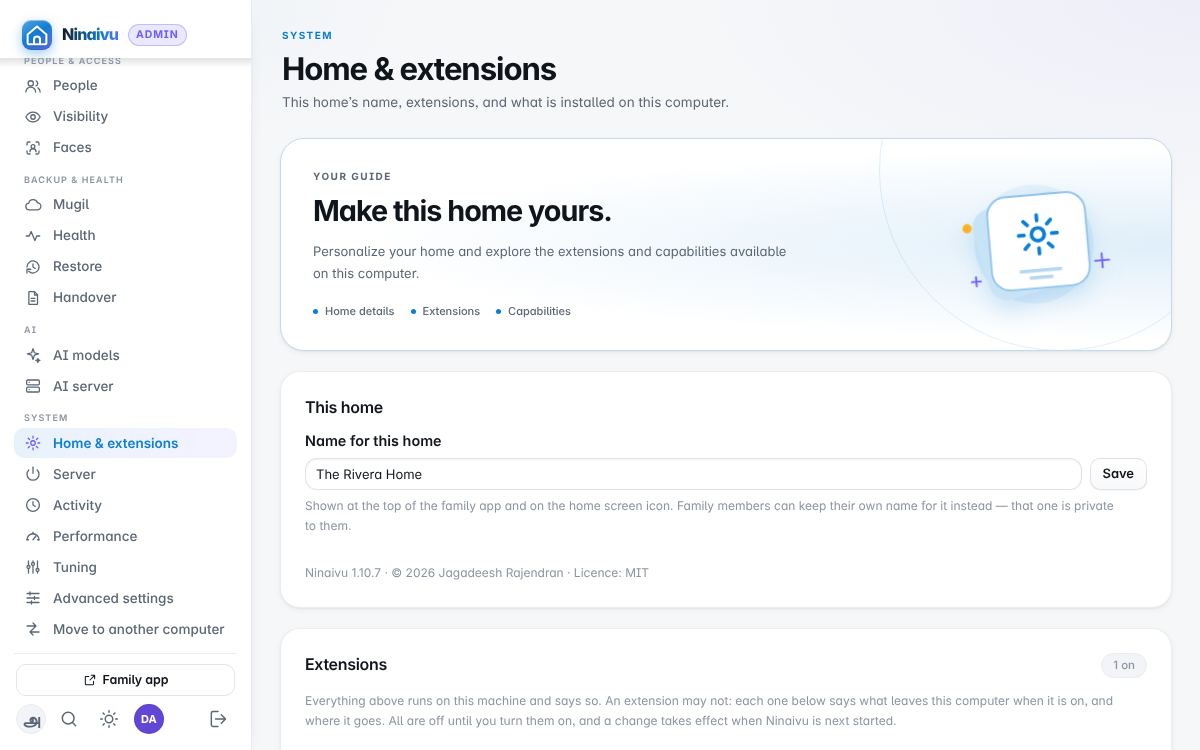
This home's name and the version; the extensions installed (each saying what leaves the computer when it is on) and whether family members may use one that sends photographs out; and Extras, the optional packages, search by description among them.
System — Server
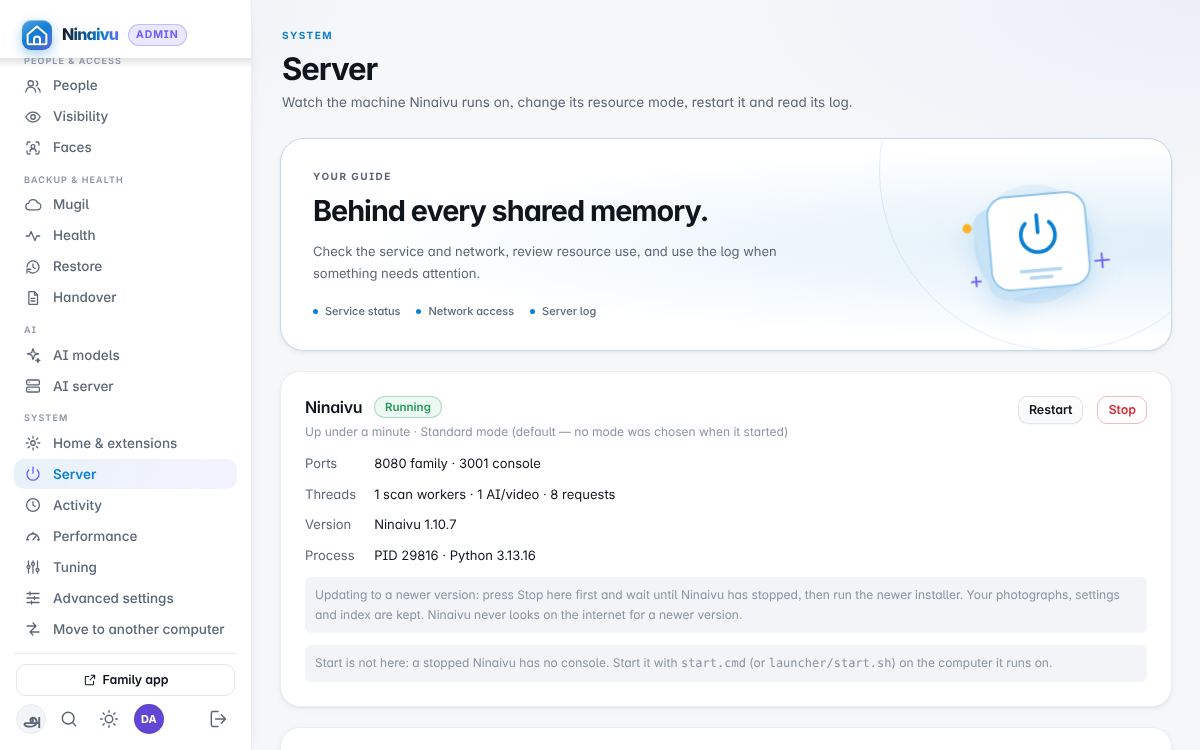
Whether Ninaivu is running and where it answers, its version (press Stop here before installing a newer one), the addresses to give the household and whether the console may be opened from other devices at home, Away from home — how the household reaches Ninaivu from outside (Tailscale, WireGuard, a tunnel, a reverse proxy, or nothing) — the resource mode, the log, and the HTTPS certificate.
System — Activity
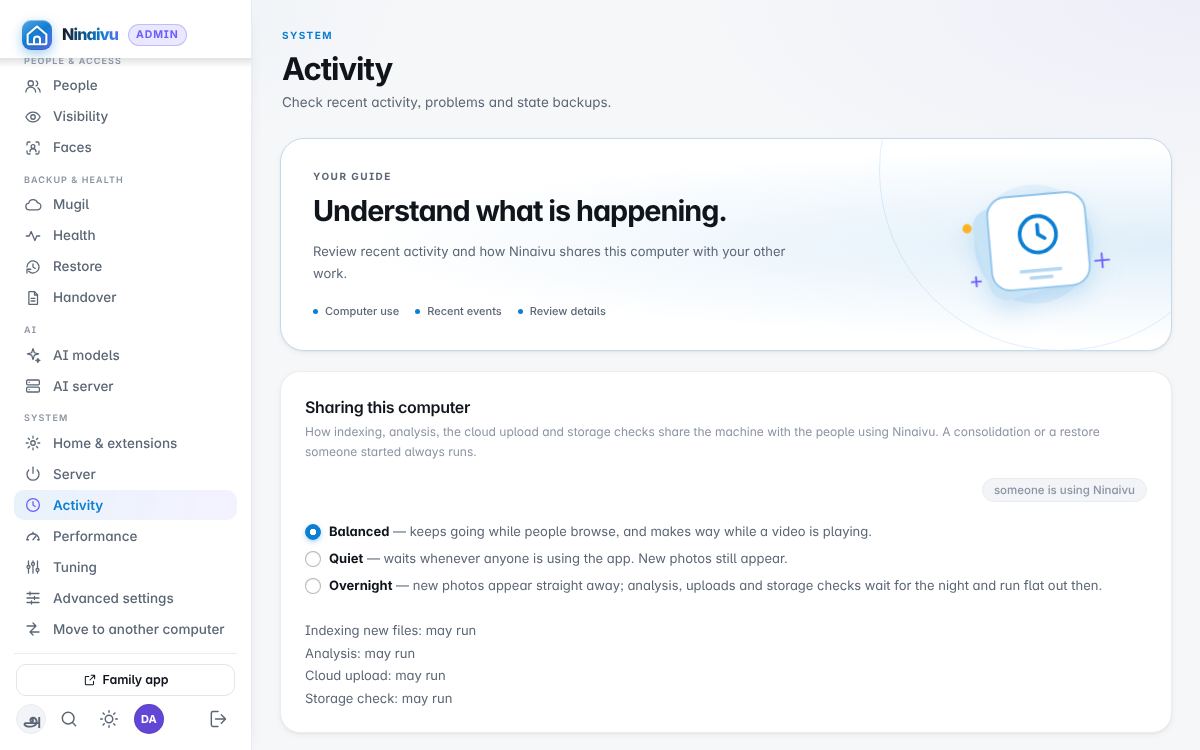
What is running now and who is using the computer, so the backup and the scans can make way for the household.
System — Performance
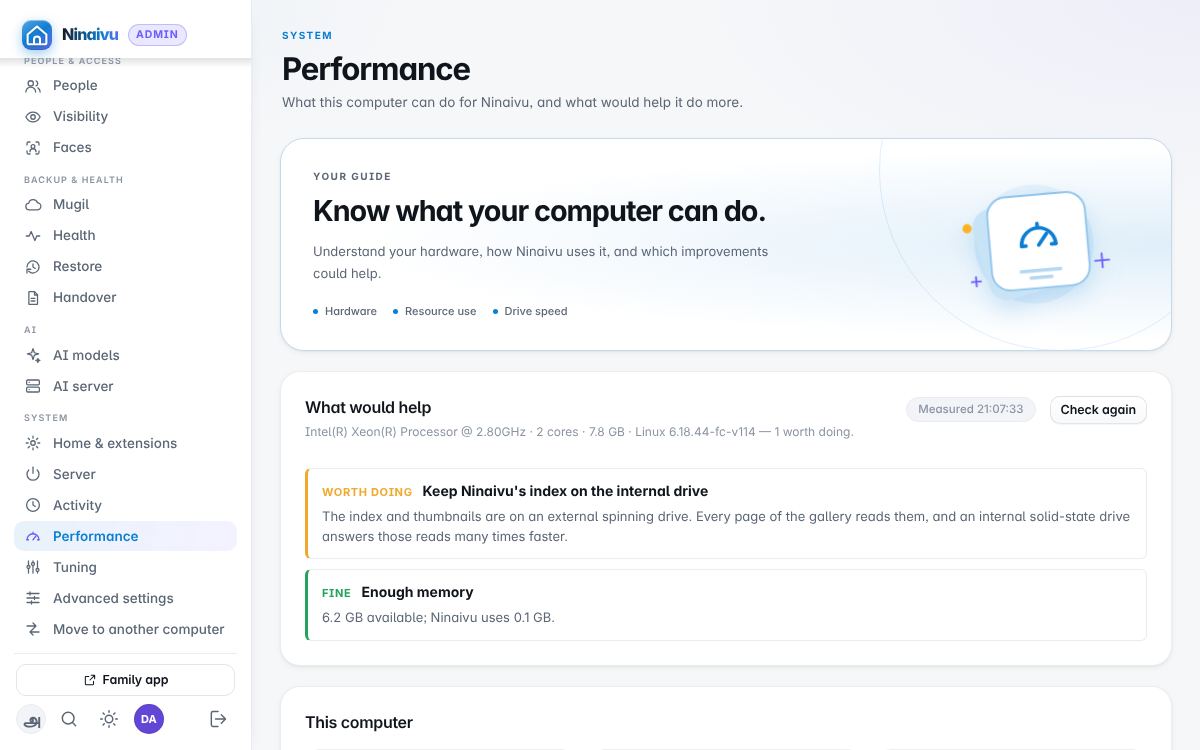
What this computer can do for Ninaivu, and what would help it do more.
System — Tuning
The profile Ninaivu picked for this computer at start (Small box, Everyday computer, Powerful computer, or Peak performance chosen by hand), what was measured, and every number it sizes, each of which can be set by hand or put back to automatic. (No picture of this page yet.)
System — Advanced settings
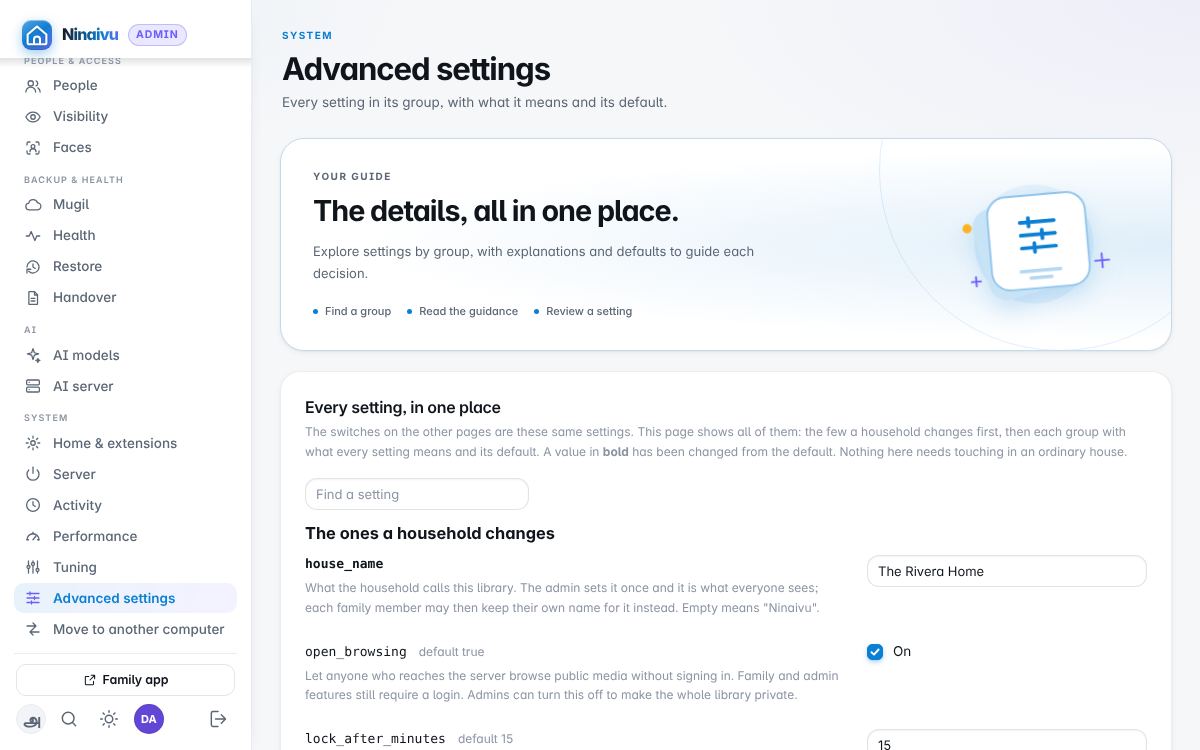
Every setting Ninaivu has, in six groups — Library, People, Backup, Remote access, AI, Advanced — with what each means and its default; the ten a household changes come first. The switches on the other pages are these same settings. Nothing here needs touching in an ordinary house.
System — Move to another computer
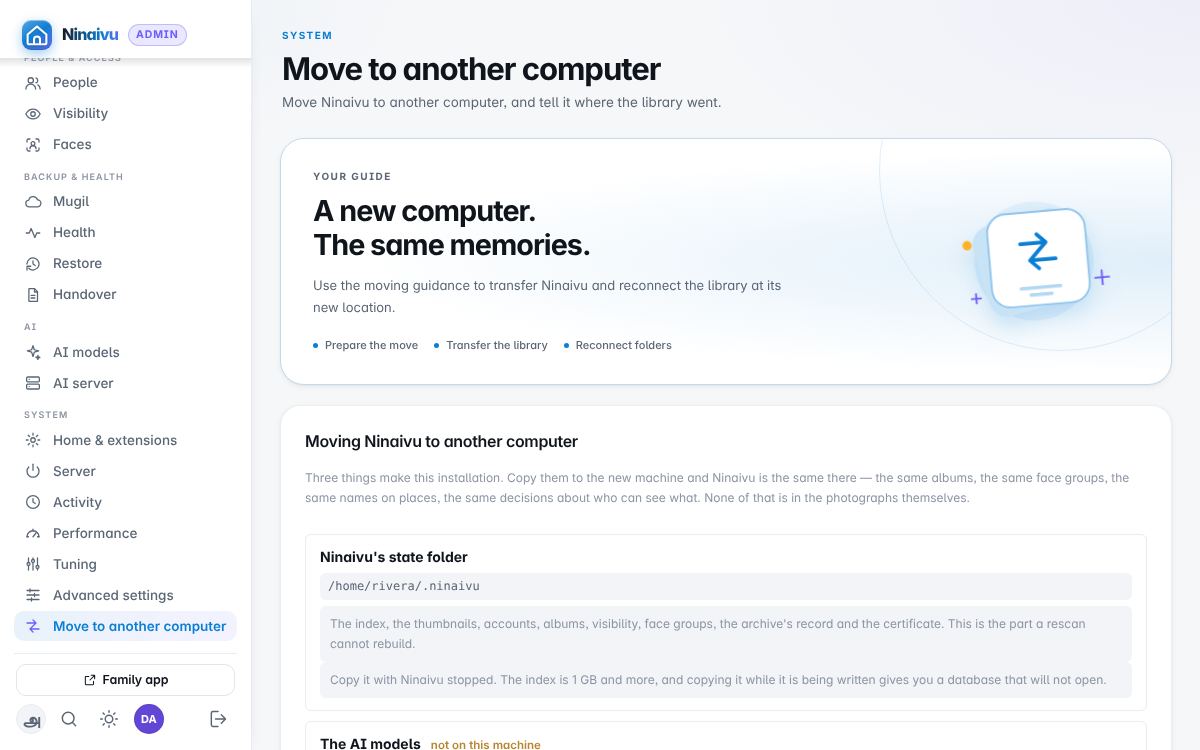
Moving Ninaivu, or telling it the library has moved, without re-indexing everything.