The family app
Everything a family member or guest needs, and nothing else. You do not need to know anything about servers to use Ninaivu: it opens like a website, and on a phone or tablet you add it to the home screen once and it behaves like an app.
Two things explain most of how it behaves:
- Everything has a visibility. Every photograph is public, family or admins only. What you see depends on which profile you came in as.
- The management screens are somewhere else. The administrator runs Ninaivu from a separate console on its own address. A family member or guest can change nothing about the library from the family app; an administrator signed in there can also delete and change visibility.
Coming in
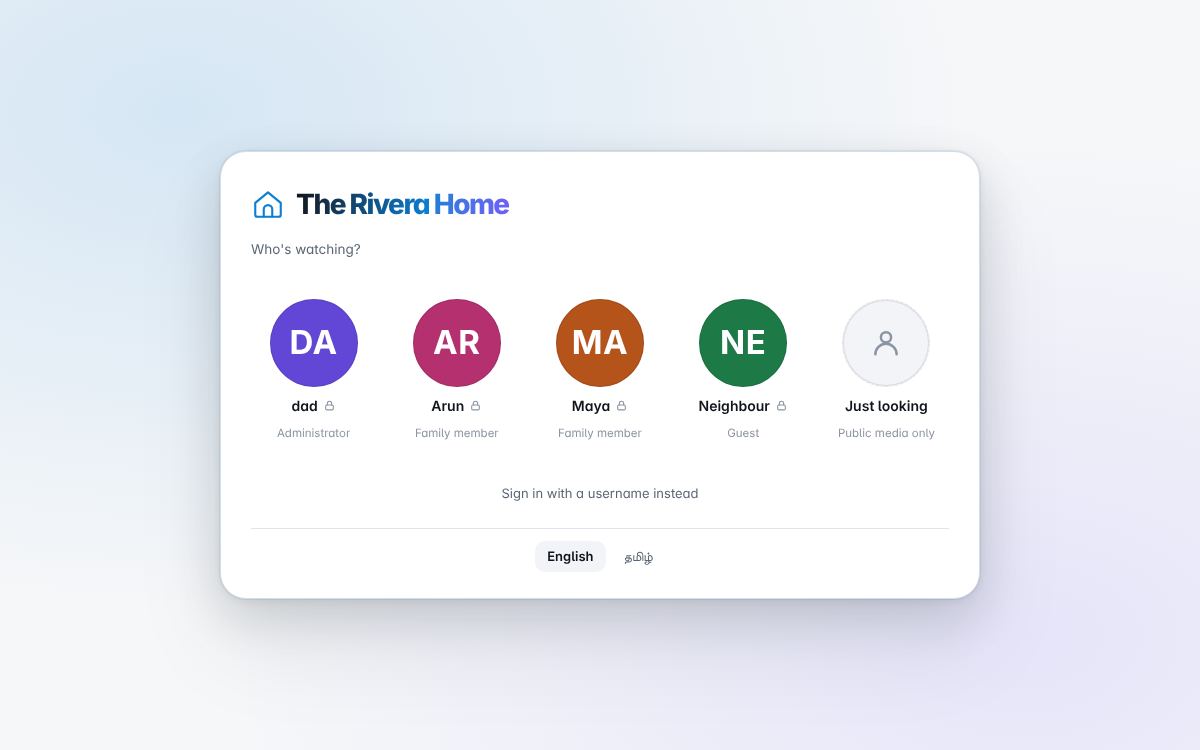
The family app opens on the household's profiles. Tap yours. What that costs depends on how the administrator set it up:
| Tap to enter | nothing at all — right for the family tablet or a shared television |
| PIN | four to eight digits, shown as a small lock on your tile |
| Password | the full form, for guests and anyone who wants it |
| Just looking | with open browsing on, a tile that needs no profile and shows only what is public |
The administrator has a tile here too, with their picture and a lock: tapping it asks for their password, never a PIN, and they still sign in to the console with their username. You can change your own name, colour and picture whatever your role.
Forgot your password or PIN? Press Forgot your password? under the box, then Let an administrator know. The administrator sees it in the console and gives you a temporary password, and you choose your own when you next sign in. Ninaivu sends no email, so this is the way back in.
The gallery
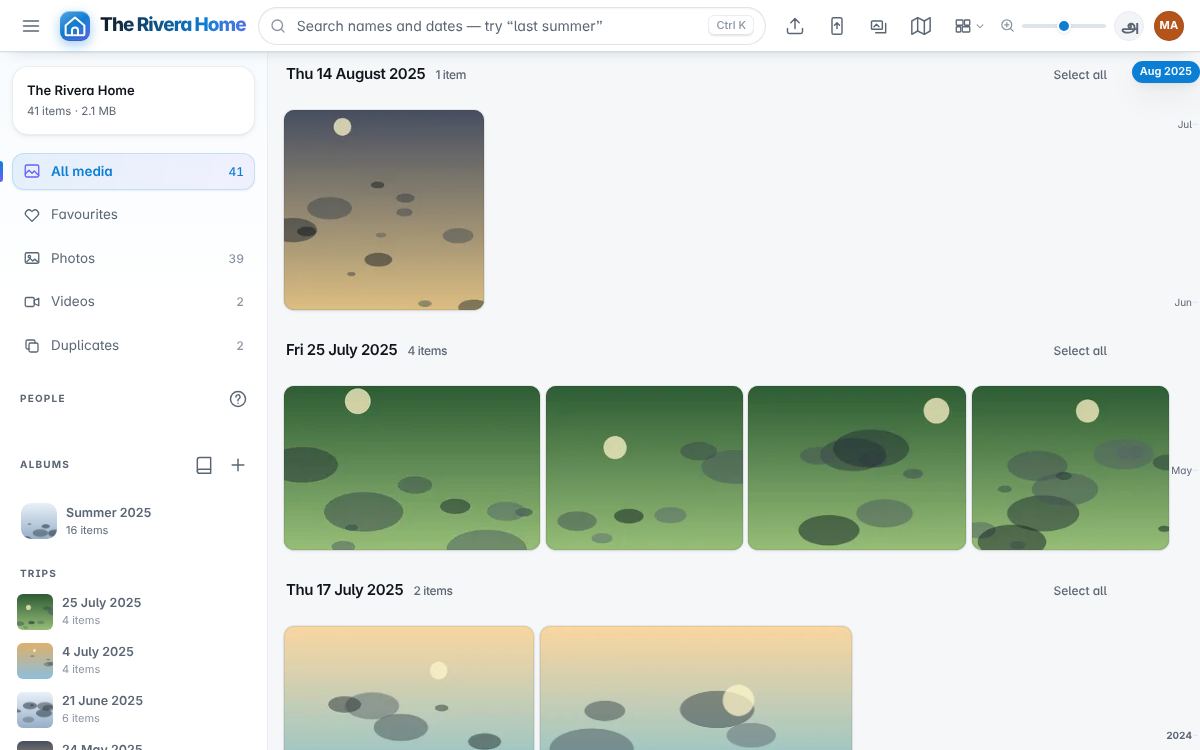
Everything you may see, newest first, grouped by day. Four layouts, and they
are a real preference: justified suits mixed shapes, masonry tall
photographs, grid scanning, filmstrip one long roll. + and −
change the thumbnail size; T switches the theme.
The left column is the library's shape: photos, videos, favourites, duplicates the index found, albums, trips the dates suggest, then years and folders. Click any of them and it becomes a removable filter chip; chips stack, so beach + 2019 + a person is one click each. The strip down the right edge jumps anywhere in the library by month, as smoothly on a hundred thousand photographs as on a hundred.
Search takes plain words. On a Full machine (AI) the image model ranks results by how well the picture matches — "the beach at sunset" works as written, nobody tagged anything. On a Basic machine search covers names, dates, places, people and the words in file and folder names. The map button shows every located photograph grouped by place.
Selecting. Click the circle on a tile, Shift-click for a range, X on
the focused tile, or ⌘/Ctrl+A for everything shown. With a selection you can
favourite, download or add to an album at once; an administrator also
changes visibility in bulk.
A photograph
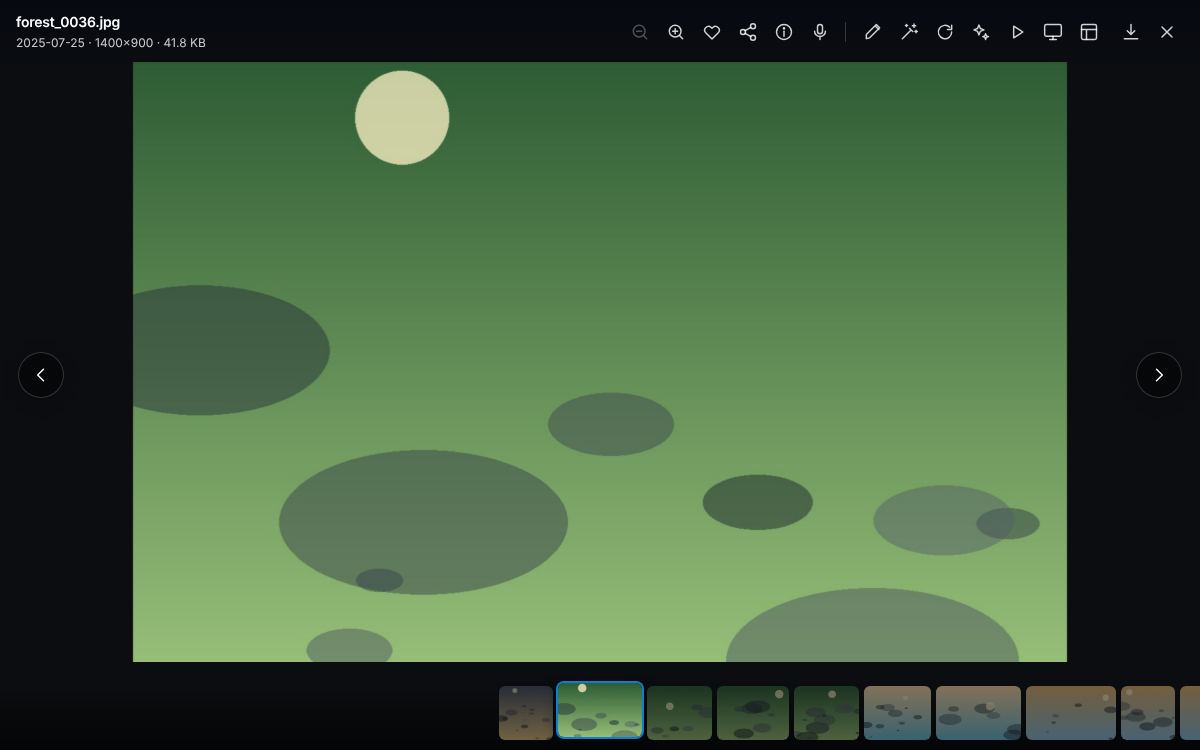
The whole photograph fitted to your screen, with its date, place and people, and the actions your role may take.
- Zoom with the wheel or a pinch, drag to pan, double-click to zoom to a
point;
0puts it back. Arrow keys or a swipe move on. I— details: camera, lens, ISO, aperture, where the date came from, the location if the file carried one.S— find similar: up to twelve photographs that look like this one — the other attempts at the same moment. It needs search by description (AI); without it the panel says the photograph is not analysed yet.F— favourite. Favourites are private to you, even when several people share the same folder. Guests cannot favourite.R— rotate (Shift for the other way). A turn saved by a family member is saved for the whole household; the file itself is not touched unless an administrator writes the turn into it.D— download the original (family members and administrators).- Share link — a link for this photograph, with an optional password, that shows exactly what you could already see.
- Edit photo — the Photo Studio, below (family members and administrators). The button beside it opens Sudar, the AI studio, below that.
Space— a slideshow.K— the Ambient Frame: full screen, a slow drift across each picture, a clock in the corner, a new photograph every few seconds. It is the reason to keep an old tablet on the kitchen wall.Esccomes back.
A Live Photo from an iPhone is one item with a Live badge. It plays once when you open it; press and hold the photo (or the LIVE button) to play it again with its sound, and let go to go back to the photograph. On a computer, resting the mouse on a Live tile in the gallery plays it there. Ninaivu pairs the photo and its clip while indexing, even when they were filed in different day folders, and a clip a browser cannot open is converted for it.
A camera set to RAW+JPEG takes two files of every shot. They are one item in the gallery, showing the JPEG, with a RAW badge; Download RAW under More in the viewer takes the RAW file. Hiding or deleting the photograph does the same to its RAW.
Voice stories
The microphone button on the viewer's bar (V) opens the stories told
about a photograph or video — Paati saying "this is my father's shop in
1968", in Tamil or English — with how many there are on the button.
- Record a story asks for the microphone then, and only then, and records up to five minutes; Stop, listen back, Record again if you like, and Save story. Upload audio takes a recording already on the device instead (up to 25 MB).
- What is said is optional: type the words, in any language, and the gallery's search finds the photograph by them. Nothing turns the voice into text by itself, and no recording or word of one is sent to any outside service.
- Who is speaking starts as your own name; change it to whoever is talking.
- A story is seen by exactly whoever may open its photograph: a photograph kept for administrators keeps its stories to them too. Guests can listen but not record. Whoever told a story, or an administrator, can delete it.
- A share link of the photograph carries its stories, to listen to.
- Browsers allow recording only over a secure (
https) address; over a plainhttpaddress, use Upload audio, or ask the administrator to turn on HTTPS. Recordings are kept as the browser made them, so one made on an older iPhone may not play in another browser, and the other way round.
Press ? anywhere for the full list of keys.
People
If faces are on, a row of people appears in the sidebar. Click one to see that person's photographs. The count is yours — how many you are allowed to open — so two people in the house may see different numbers for the same person. Naming people and confirming matches are the administrator's job on the console; in the family app, People is read-only — with one exception, below.
Who is this? Ask the family
The question-mark button beside People (family members and administrators) opens Ask the family. Choose up to 20 faces nobody has named and press Make the link; send the link by WhatsApp or e-mail to whoever might know — Paati does not need an account. The page it opens shows only those faces, in English or Tamil, with a box for a name and a note ("my uncle Raman, at Chennai, around 1975"). It never shows the names the family already uses, and it shows the whole photograph only if you ticked Show the whole photograph too — never one only administrators may see. A link lasts 30 days and can be withdrawn under Links sent; a photograph hidden after the link was made drops out of it.
Answers wait under Answers, saying who answered and when. Yes, it is … joins the face to somebody already named, Accept as a new person makes a new one, Dismiss throws the answer away. Accepting confirms the face just as the console's review does, so Ninaivu can then suggest that person across the whole library. A family member reviews the answers to their own links; an administrator sees all of them, and can also ask from Faces on the console.
Family tree
The tree button beside People opens the family tree: a row for each generation, a line from each child to their parents and between couples. Choose a person at the top to add or remove their parents, children or spouse; nobody can be made their own ancestor. Tap anyone in the tree to see their photographs. The tree holds only the people you can see in your People row, so somebody who appears only in photographs you cannot open is not in it.
Albums
Any family member can make an album and add to it. Albums hold references, not copies: deleting an album never touches a photograph. An album can be shared as a link, with an optional password.
Photo books
Open an album, a trip or a person and choose Make a book to have a print-ready PDF made: a wedding, Pongal, Deepavali, a sixtieth birthday, a holiday. Choose a template (Plain, Wedding, Pongal, Deepavali, Birthday or Holiday, each with its own colour and ornament), a size (A4 portrait or landscape, or a 20 or 30 cm square, all at 300 dpi), the title, how many photographs (12 to 120, 36 to start with) and whether each has a caption with its date and who is in it. Add 3 mm bleed if the print shop asks for it.
Ninaivu then picks the photographs: blurred ones, screenshots and repeats are left out, faces and favourites come first, and the picks are spread across the whole occasion in the order they were taken. Untick any you would rather leave out, then Build the book. It is made on this computer, a page at a time, and nothing is sent anywhere. Only photographs you can see yourself go in, and only the names of people you can find under People.
You need not choose anything at all. Books (the book button beside Albums) opens with Ready for you: the best of each year, of each trip and of each person the family has named, wherever there are at least 24 photographs to choose from. Make it builds one in a single tap, with the 36 best photographs, a title and a template chosen for you; Choose… opens the usual steps first. When the AI search is on, "best" also means what looks well made to it, clear faces of named people, and photographs somebody told a voice story about or put in an album, judged on this computer from what the search already knows.
Finished books are kept under Books to download again or delete. A book is yours: nobody else in the family sees it in their list. Tamil titles need a Tamil font on the computer Ninaivu runs on; if there is none, the dialog says so and Tamil words are left out of the PDF.
Sending photographs
Family members can upload from the gallery; the files wait for the administrator under Review → Uploads before they join the library, and a name that already exists gets a short suffix rather than overwriting anything. On a phone added to the home screen, the backup screen sends the photographs and videos you choose: keep the page open while it sends — a web page cannot read the phone's library by itself or keep going in the background — and it skips what is already here and resumes where it stopped. The limit is 512 MB per upload. Guests cannot upload.
To have the phone back up without opening anything, make a phone key for it and give it to a sync app such as PhotoSync: Backing up by itself.
Scanning old prints
Scan old prints (in the top bar, or under More on a phone) turns printed photographs into photos in the library. Take a photo of one print, or of several laid out on a table with a little space between them, or choose photos you already took or scanned — up to ten at a time. Ninaivu finds each print, flattens it if the photo was taken at an angle, turns it the right way up and straightens it; if it cannot tell the prints apart, it uses the whole photo.
Untick anything that is not a print, then choose:
- Fix faded colours (on by default) brings back the blacks and whites and removes the red or yellow cast old prints get.
- Restore faces and Make it bigger use the same AI models as Sudar's Enhance tools; they are greyed out until an administrator downloads them under AI models.
- Keep the original photo keeps your phone's photo too, in
Scanned prints/originals.
Then say when the prints are from: a year (1975), a decade (1970s) or a
date (1975-06-12), or leave it empty. If the picture-search model is
installed, Ninaivu suggests a decade — it is a guess from how the prints
look, so check it. The prints are saved as new photos in
Scanned prints/<year> (or Scanned prints/Unknown year) and are dated as
you said; nothing already in the library is replaced. A family member's
prints wait for the administrator under Review → Uploads, like any
upload. Nothing is sent outside the house. Guests cannot scan prints.
The Photo Studio
Edit photo opens the Photo Studio: light, colour and detail, on this device, with the original kept. Every slider means the same thing as the slider of that name in Sudar, because the two share one engine.
- Light — a histogram at the top; exposure (40 on the slider is one stop), contrast, highlights and shadows judged by their neighbourhood so a face in front of a bright window opens up without a pale ring round it, whites, blacks, dehaze; and a tone curve drawn over the histogram, for all channels or one, with points added by clicking and removed by dragging them off the square.
- Colour — white balance and tint; vibrance, which knows where brown skin of every complexion sits and leaves it nearly alone, and saturation; an eight-band colour mixer (hue, saturation, luminance); black and white, whose tones come from the mixer's luminance sliders; split toning; and Natural skin tone, which judges the colour of the whole photograph by the skin in it and moves warmth and tint only as far as skin of any complexion looks natural.
- Detail — clarity (negative softens), sharpening on lightness only with radius and masking, luminance and colour noise reduction, film grain, and a vignette with midpoint and feather.
- Skin and Hair — the people in the photograph, each against their own skin: below.
- Looks — ten for family photographs, each shown as a small picture of the photograph being edited and laid over your own sliders with an amount: Natural, Festival, Golden hour, Soft portrait, Backlit rescue, Revive old print, Film, Monsoon, Classic black and white and Warm black and white. None raises the lightness of skin or drains its colour.
- Crop — straighten, ratios, flip across and flip upside down. Export — full size, or 3840, 2048 or 1080 pixels on the long edge.
The photograph is worked a strip at a time, so a 24-megapixel file fits in the browser's memory. Saving writes a copy in the same folder with what the camera wrote — make, model, lens, exposure settings, place — carried over; the original is never changed. An administrator's copy joins the library at once; a family member's waits under Review → Uploads for approval.
Sudar, the photo studio
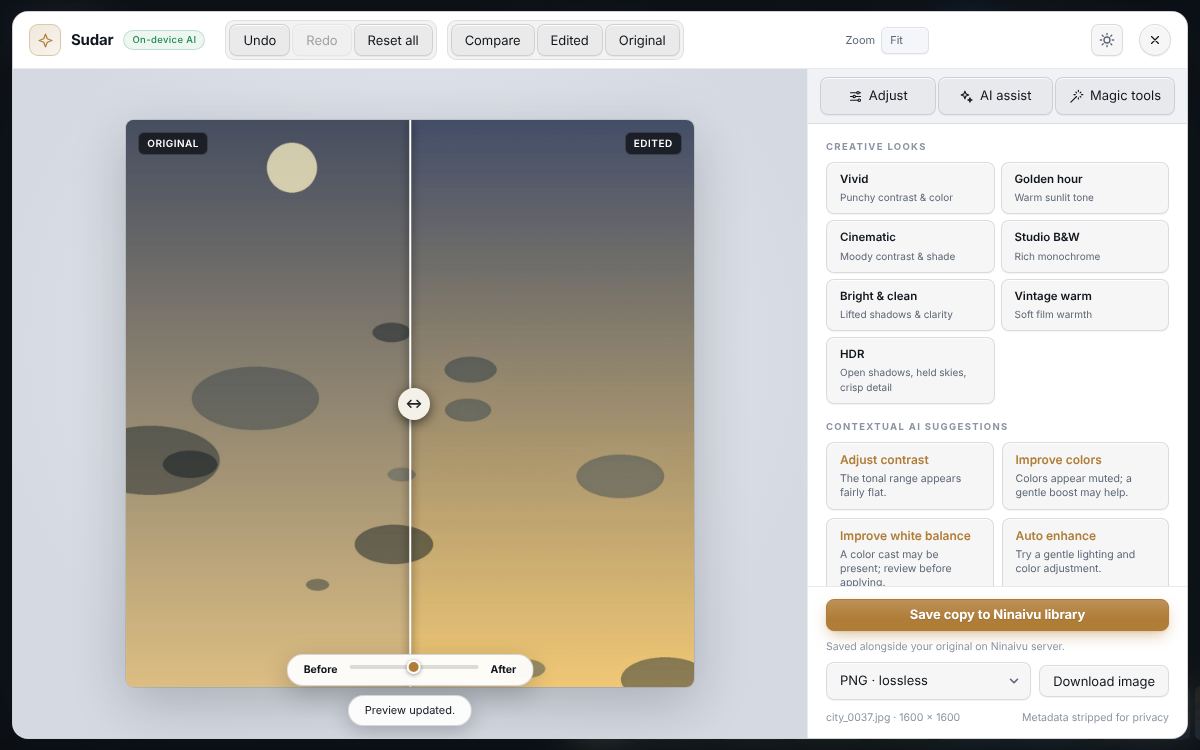
Sudar (சுடர், glow) edits a photograph in the browser: looks, suggestions measured from the picture, light and colour sliders (exposure, contrast, shadows, highlights, dehaze; vibrance, saturation, white balance; clarity, sharpness, noise, vignette), straightening and crops (square, 16:9, 4:5, and 9:16 for a story), with the original on the left and the edit on the right. "Make it warmer" in plain words works too. The original file is never changed; a copy can be saved beside it, and a family member's copy waits for the administrator's approval like an upload.
Any result can be saved. A cut-out, a blurred background, a colour pop (the subject in colour, the rest in black and white), an upscaled, restored or colourised picture, a generated preview: each has Save to library beside Download, and goes the same way as the sliders' edit — published beside the original for an administrator, into the approval queue for a family member. Object removal and Clothing colour put their result back on the photograph with Apply to photo, so the sliders and Save are still there.
Enhance tools — Upscale, Restore faces, Colourise — are always on the card; one that is not set up is greyed out, and the line under it says which model it needs and that an administrator adds it (AI). With both of the last two, Revive old photo restores the faces and then colourises an old print in one tap.
With the Creative Studio extension on (AI), Sudar also does generative edits — including a new hairstyle, which is drawn rather than adjusted, from ten ideas under the prompt, and Add hair, which paints where hair should be and has the AI server draw it — object removal and upscaling, on this computer or on an AI server at home. Nothing leaves the house.
The Creative Studio (the Magic tool of that name, not the extension) makes things from photographs, in the browser: a restoration story and a then-and-now comparison, a family story album with a recorded memory, a postcard, a collage in three layouts, a cinematic slideshow with music, selective colour, a sheet of named versions, a recipe card and a photo calendar. Photographs come from your files or from the library; the picture creations come as a landscape, a square or a 9:16 story, and can be saved to the library like an edit, or downloaded, or printed. The album, slideshow and comparisons export as a web page that works on its own.
Skin and hair
Open Skin or Hair in the Photo Studio, or Skin & hair retouch in Sudar — they are one set of tools — and Ninaivu looks for every face in the photograph, on this computer, with the face model the People page already uses. Across the top are the people it found: Everyone, then each face. Choose one and a slider moves for that person alone (a dot beside it says so); choose Everyone and it moves for everybody who has not been given a setting of their own. Improve faces gives each person what stood out about them — a face in shadow is lifted, a yellow or pink cast is turned back towards skin, a shiny forehead is calmed, grey hair is covered — and nothing else. It is one step of Undo, and every slider it moved is still a slider.
Look younger, at the top of the Skin panel, does in one tap what these tools can honestly do about age, for whoever is chosen and by the amount you set: smoother and more even skin, calmer shine, brighter under-eyes, grey covered, strands brought out, thin hair filled. It only moves the sliders below, so each can be changed afterwards; it lightens nothing and redraws nothing, and the person stays exactly who they are. Ninaivu has no age model, on purpose: the ones that exist redraw the face.
What these tools do and do not do:
- Each person is judged against their own skin. A fair face and a very dark one in the same photograph are not pushed towards the same colour.
- A bindi, kumkum, sindoor, sacred ash or sandal paste is left exactly as it is. Nothing here smooths, recolours or blurs it, and its colour cannot spread into the skin beside it.
- Nothing makes skin lighter or fairer. Face light is exposure for a face that is in shadow; skin of every colour is lifted by the same amount, so a dark face stays dark. It is only offered when the whites of the person's eyes show the face really is dim — never because the skin is dark.
- Eyes, brows, lips and teeth are not touched. Soften takes blemishes and leaves pores; a fold, an eyelid or a mole is kept.
- Hair and beard: Strands & shine, Fuller hair (fills thin hair: where light shows through between strands, the gaps are brought down to the strands' tone with their texture kept; it adds no hair where there is none, and never reaches skin), Cover grey, and Hair colour (black, dark brown, brown, chestnut, henna, burgundy or any colour). When hair cannot be told from what is behind it — black hair against a black wall — Ninaivu asks the background-removal model, if it is installed (AI), where the background is; without it, it says so rather than guess, and you paint the hair in with Add and Remove, in the Photo Studio and in Sudar alike. What you paint goes with the picture if you crop or turn it.
- Add hair. The third brush in the Hair panel: paint where there should be hair — a receding hairline, a thin crown — and it is drawn from the hair beside it, the same strands, colour and shine running on; Added hair says how much shows. It is this person's own hair, made on this computer, and it works best for a band of a finger's width or two along the hair that is there. For more than that — a bald patch, a whole new head of hair — Sudar's Add hair · generative Magic tool paints the area and has the AI server draw it, when the Creative Studio extension has a Paint and ask workflow.
- Natural skin tone, in the Photo Studio's Colour panel, judges the colour of the whole photograph by the skin in it — indoor light is yellow, a shaded courtyard is blue — and moves the warmth and tint sliders only as far as the edge of what skin of any complexion looks like.
Finding faces needs the face model (AI models → Finding and grouping faces, part of the essential set). Without it the panel says so, and the brush still works.
Language
The language button switches between English and Tamil (the sign-in and lock screens have it too). It is saved on your profile, so every device you use follows it.
The screen lock
After 15 minutes without use, the app locks; your PIN or password opens it again, and anything in progress carries on meanwhile.
Sound recordings
Sound files in the library — voice notes, voicemail, dictation swept up from old drives — are administrator-only, always. A photograph is looked at on purpose; a recording plays out loud the moment somebody taps it, in a room with other people in it.
On a phone
Open the address the administrator gives you while on the home Wi-Fi, then Add to Home Screen. It opens like an app and works offline for what it has already shown. Away from home, it works only if the household set up remote access.