Backup
Three things can lose a library: the disk, the house, and a mistake. Ninaivu keeps a copy against each.
Mugil — a copy outside the house
Mugil (முகில், cloud) keeps an encrypted copy of the library on Google Drive. It is one way: nothing in Drive can change, move or remove anything at home, and deleting a photograph from Drive does not delete it here.
Encryption is on from the start, and nothing is uploaded until you have made the encryption key on the Mugil page — so no photograph, and no copy of the index with the names given to faces, ever goes up unencrypted. An administrator can switch encryption off; the page then says plainly that photographs and names go up as they are.
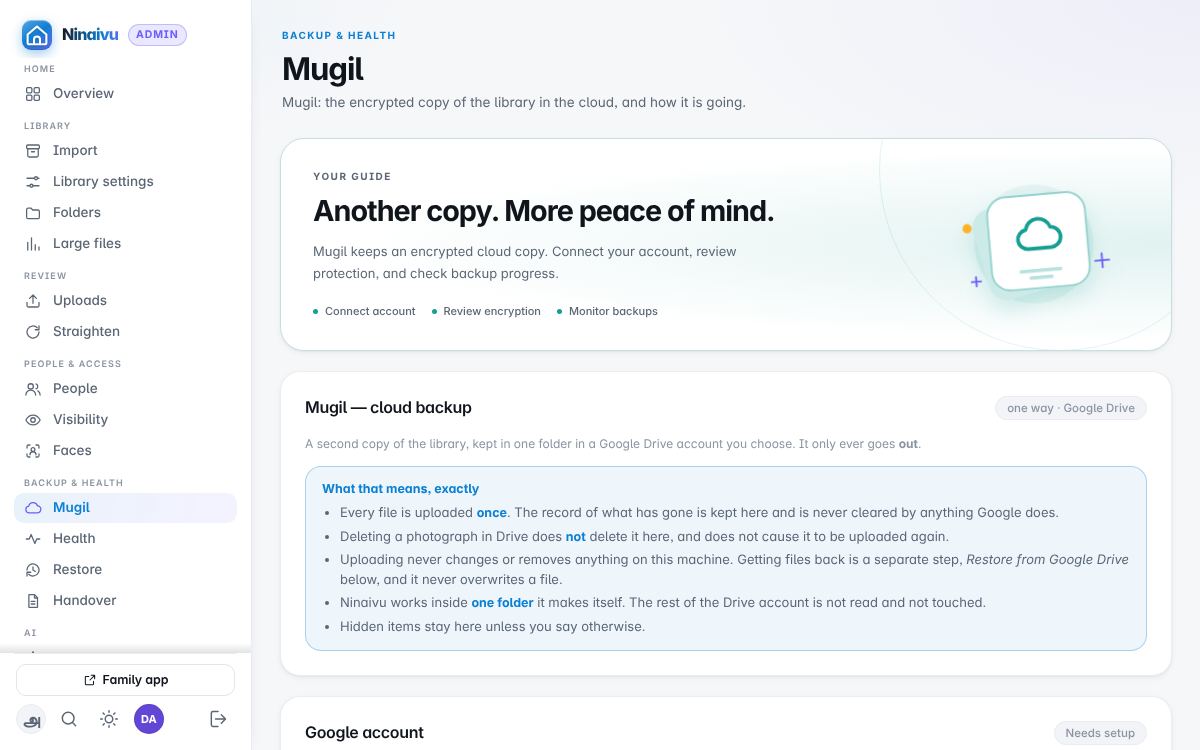
On the Mugil page: the Google account (a few minutes, once), the encryption key and its recovery file, what is sent and what is kept back, the speed and the hours it may use, and Test restores — the weekly test that brings a few files back and checks they match, with its history.
The recovery file
The copy in Drive is useless without the key. Ninaivu writes a recovery file and asks you to keep it somewhere that is not this computer — a USB stick in a drawer, a password manager. Without it, a lost computer means a lost library, however good the copy in Drive is. What is in it.
Google Drive is Mugil's destination today; the second disk and S3 are the separate copies below, and WebDAV is on the roadmap.
What is sent can be narrowed in Settings → Backup: everything, all but videos, or pictures only; nothing over a size; and folders or words in a path to leave out. A file over cloud approval (1 GB by default) waits until an administrator says yes to it, and the safety check says when files are waiting.
A second copy, and one off-site
Two more copies, set up beside Mugil:
- A second copy on another disk or a NAS share: every photograph copied across on a schedule and checked against its own record every few weeks. Nothing removed at home is removed there.
- An off-site copy to any S3-compatible bucket (Backblaze B2, Wasabi,
MinIO, Amazon S3) or a folder (a friend's disk, a mounted share), encrypted
with the Mugil key before it leaves. It can be put back on any computer,
with or without Ninaivu running, by
ninaivu offsite-restore --recovery <recovery file> <copy> <output>.
The safety check Every photograph in more than one place counts the photographs that have no copy anywhere but this computer.
Repairing a damaged file
The scheduled check (every 30 days by default) reads every photograph and
compares it with what was recorded when it was indexed. With scrub repair
on, a file that has changed on disk without being edited is put back from the
second copy or from Mugil, and the damaged one moved out of the library into
the state folder (repair/damaged/), never thrown away.
Restore
Backup & health → Restore brings photographs back from the cloud copy in three steps: what to bring back, where to put it, and the key. Nothing here ever overwrites a file that is already there.
The index
The index — faces and the names given to them, albums, who may see what — is
copied on this computer once a day, seven copies kept (Health shows them),
and into Drive with the library, encrypted with the same key, so a lost
computer loses nothing but time. To put a copy back: stop Ninaivu and run
ninaivu restore <file>. Moving to another machine.
Voice stories (the recordings people make about a photograph) live in the
stories folder beside the index, not in the library. The daily copies on
this computer carry them, words and sound, and a restore of one puts them
back. The copy of the index in Drive leaves them out on purpose — nothing
about a story is sent to any outside service — and so do the second disk and
the off-site copy, which hold the photographs only. To keep the stories
somewhere else too, keep the daily copies' folder somewhere else (see
Backup & health).
Phones
On a phone, the family app's backup screen sends the photographs and videos you choose to the house over the home Wi-Fi. A web page cannot read the phone's library by itself or keep going in the background, so you pick what to send and keep the page open while it sends; it skips what is already here and carries on where it stopped. What arrives waits under Review → Uploads for the administrator, unless the administrator switched on trust phone backups; an administrator's own phone skips the review.
Backing up by itself
A sync app on the phone (PhotoSync, on iPhone and Android, is one) can send new photographs home without anybody opening a page. Each phone gets its own phone key, made by its owner in the family app:
- On the phone, open Back up this phone, check the phone's name, and under Back up automatically press Make a key for this phone. Copy the key; it is shown only once.
- In the sync app, add a WebDAV destination: the address Ninaivu gives
with the key (it ends in
/dav/), your username, and the key as the password. - Turn on the app's automatic transfer, for example whenever the phone arrives home or joins the home Wi-Fi.
What the app sends goes through the same checks as the backup screen: it is recognised if the library already has it, waits under Review → Uploads unless phone backups are trusted, and is filed by the date it was taken whatever folder the app chose. A key can only add photographs: it cannot open, list or delete anything in the library. The inbox answers only at home and over Tailscale or WireGuard, never the internet. Revoke a lost phone's key under Back up automatically in the family app, or anyone's from the console under Review → Uploads → Phone keys, which also shows what each key has sent and when.
An iPhone lets such an app send only when its trigger fires, so expect new photographs to arrive when the phone gets home rather than the moment they are taken. One file can be up to phone_upload_max_gb (8 GB unless changed); the backup screen has no such limit.
Is everything safe?
The console's Overview runs the household's safety checks every time it opens — a copy outside the house, a backup that restores, copies of the index, healthy drives — and says what to do about each.
If something happens to you: the handover plan
Usually one person knows how the library works. Backup & health → Handover writes down who takes over and how, so the photographs outlive the person who looks after them.
- Name the successors, in order, from the family members' profiles, and write them a message: where the backups are, where the backup key's recovery file and the computer's password are kept ("the blue folder in the steel almirah"), how to reach the computer, who can help. Never type a password or the key itself; text that looks like the key is refused.
- Ninaivu fills in the rest and keeps it current: the computer's name, its version, the library folders and its own folder, every backup with when it last worked, the backup key's fingerprint (never the key), how the house reaches it from outside, and how to bring the photographs back.
- Print the handover sheet, in English or Tamil, and keep it with the family's papers. Print it again after a change. The Overview reminds you when there is no plan, when it has not been looked at for six months, or when the backups changed since.
- Make a code: a one-time handover code, shown once and kept only as a hash, printed on the sheet or written on it by hand. Making a new one ends the old one.
A successor signs in to their own profile in the family app, opens it, and under Take over as administrator types the code and their own password (or, for a profile that opens with a PIN, the PIN, and then chooses the password they will use as administrator). A profile that opens with a tap has nothing of its own to check: give it a PIN or a password first. Only somebody named in the plan can use it, and guesses are limited. Nothing happens at once: for the days the plan says (7 unless you choose 0 to 30), every administrator sees it at the top of every page and can stop this handover, which uses the code up. When the wait is over the successor becomes an administrator; nobody else's role changes. Every step is in System → Activity.