The first day
Right after the administrator is made, the console walks through the five things a new library needs. Each step can be skipped and each is just a page of the console, so nothing here is a second way of doing anything.
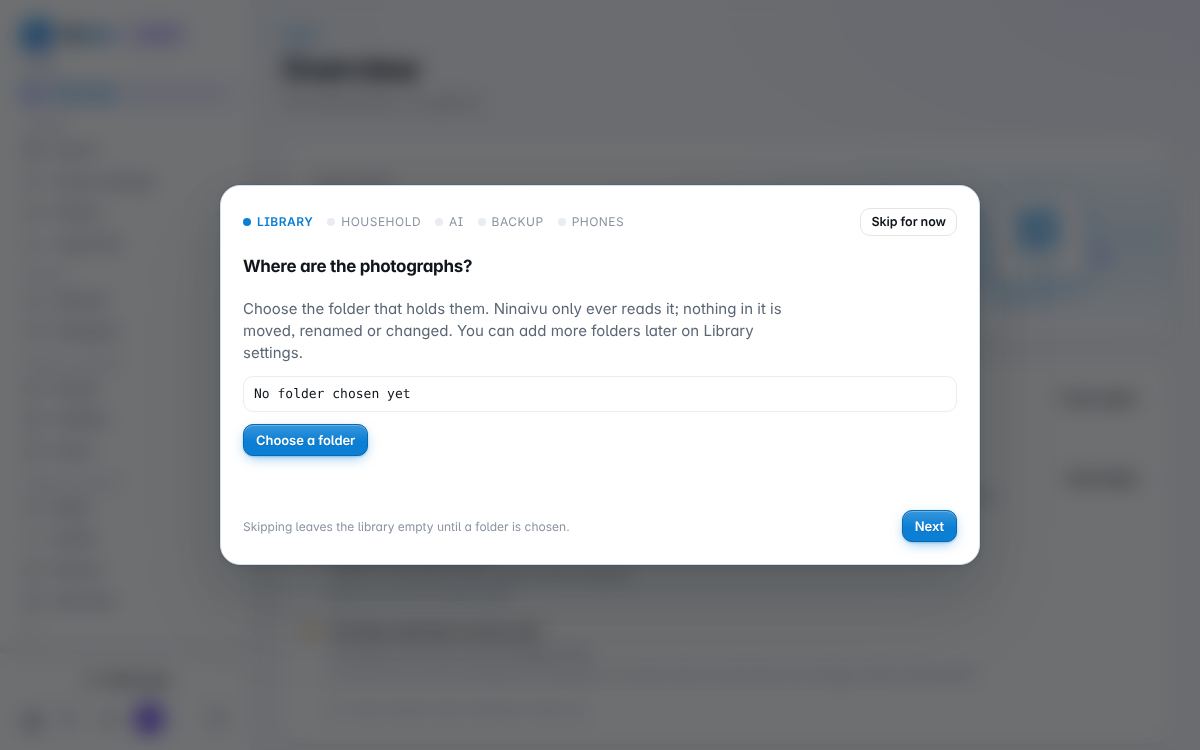
1. Where are the photographs?
Choose the folder that holds them. Ninaivu only ever reads it: nothing is moved, renamed or changed. You can add more folders later on Library settings, and sweep old drives and memory cards into one dated archive with Import — which also understands a Google Photos Takeout export, dates, places, descriptions and albums included.
2. Who is in the household?
A family member taps their name and enters a PIN. A guest signs in with a password (or a PIN, or a tap, set on People later) and sees only what you make public. Add the people you know of now; the rest can come later on People. A profile without a PIN can be opened from any phone or computer on your home network, so give a PIN to anyone whose photographs should stay theirs. More on roles.
3. What should Ninaivu work out by itself?
Everything here runs on this computer; no photograph leaves it. Find the people in photographs needs a 37 MB model, downloaded when you turn it on. Name the places needs an 11 MB list of places, downloaded once from GeoNames. Read the words in photographs needs the text reader from Extras. Search by description — finding "the beach at sunset" without anybody tagging it — is about 2 GB, added only if you press Add search by description; it is worth it on a computer with 8 GB of memory or a graphics card. Each pass takes time on a large library and can be turned off part-way. More on AI.
4. A copy outside the house
A fire, a theft or a failing disk would take every photograph. Mugil keeps an encrypted copy on Google Drive and checks once a week that it restores. It needs a Google account and an encryption key — nothing is uploaded until the key is made — which take a few minutes on the Mugil page; the Overview reminds you until it is done. More on backup.
5. On the household's phones
Open the address shown on a phone on the home Wi-Fi and add it to the home screen: it opens like an app. From its backup screen, the photographs and videos you choose are sent to the house; keep the page open while it sends.
After that
The console's Overview answers two questions before anything else: is everything safe? and what needs you? — uploads to approve, faces without a name, photographs that may be on their side. Come back to it now and then.