The console
Everything the administrator does: getting a library indexed, deciding who sees what, and the tools — Import, Faces, Mugil, Health. The console answers on its own port, on the computer Ninaivu runs on only until you open it to the home network on the Server page, and always takes a password, never a PIN. When the server cannot be reached, it shows Ninaivu is Offline rather than the browser's own error; it keeps nothing, so it never works offline.
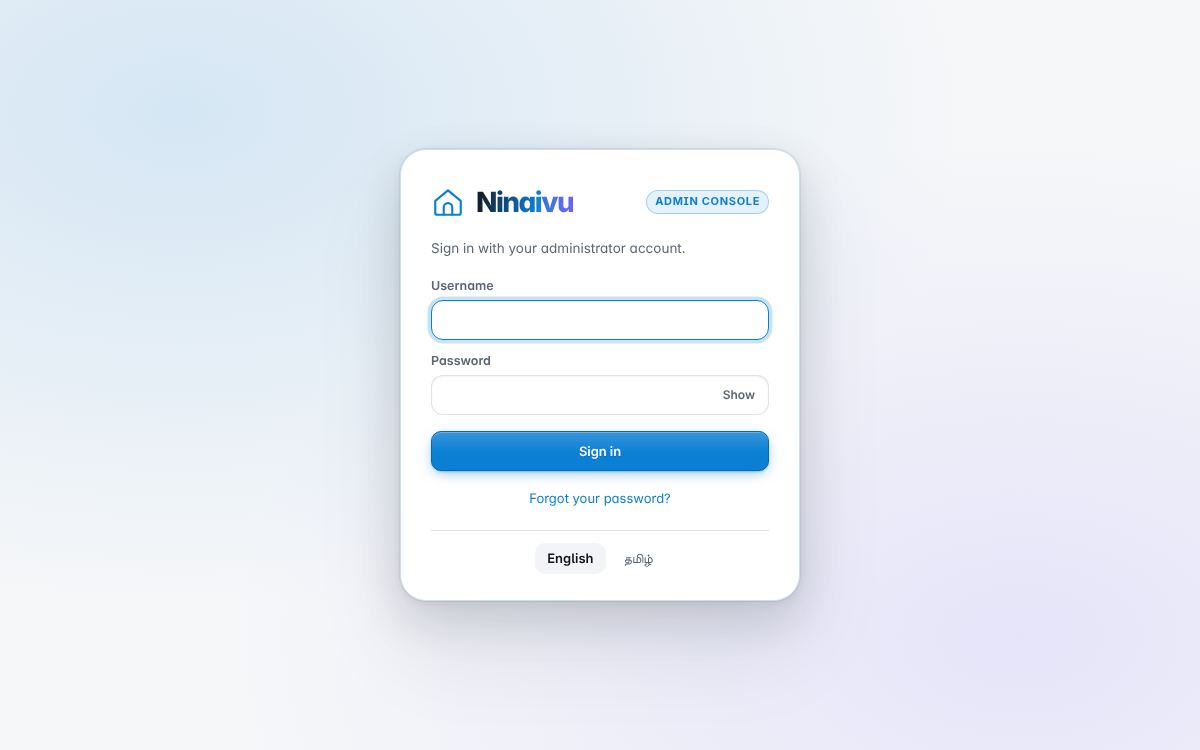
Two apps, two ports
The family app and the console are two applications in one process. The console's routes are absent from the family app, not merely forbidden: people, visibility rules, Import, Mugil and settings exist only on the console port. An administrator signed in to the family app can still delete photographs and change their visibility from the gallery. A session made on the family app cannot open the console, even an administrator's.
Home — Overview
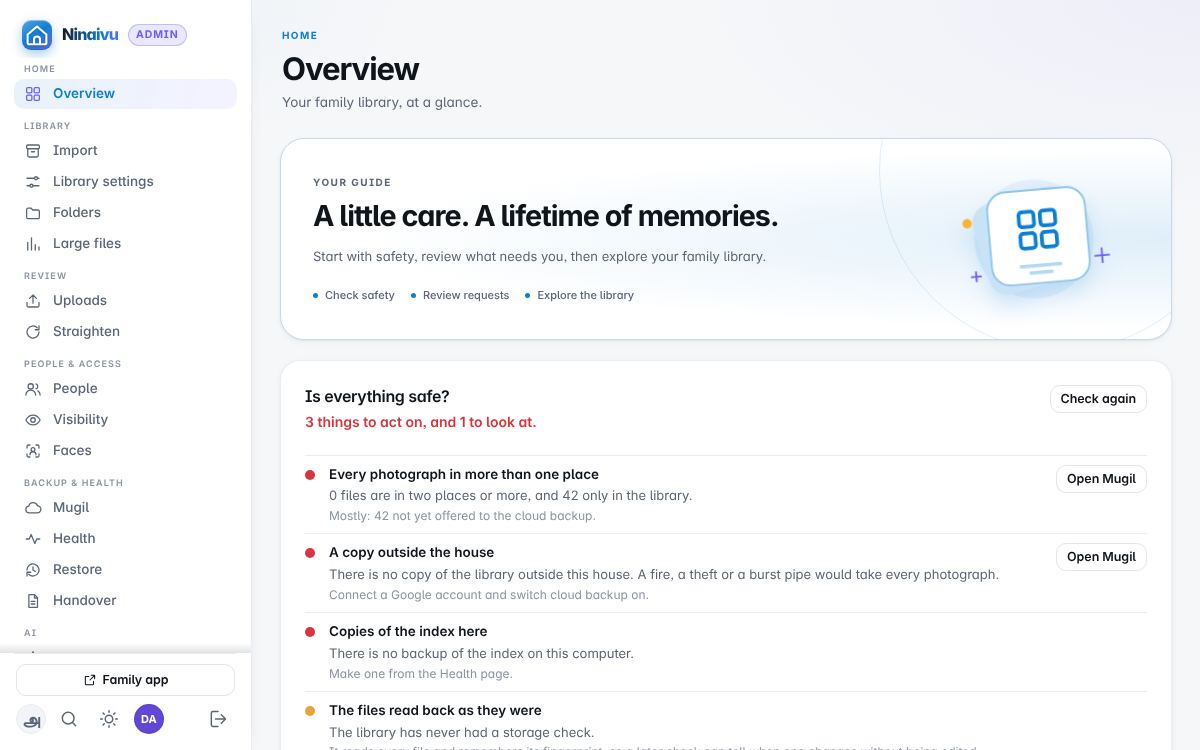
The first screen answers two questions before anything else. Is everything safe? runs the household's safety checks — a copy outside the house, a backup that restores, copies of the index, healthy drives — and says what to do about each. Needs you counts what is waiting for a person: uploads to approve, faces without a name, photographs that may be on their side, things that went wrong. Then the numbers, and what each role would actually see. The Overview is also where the first day opens, once.
Library
Import
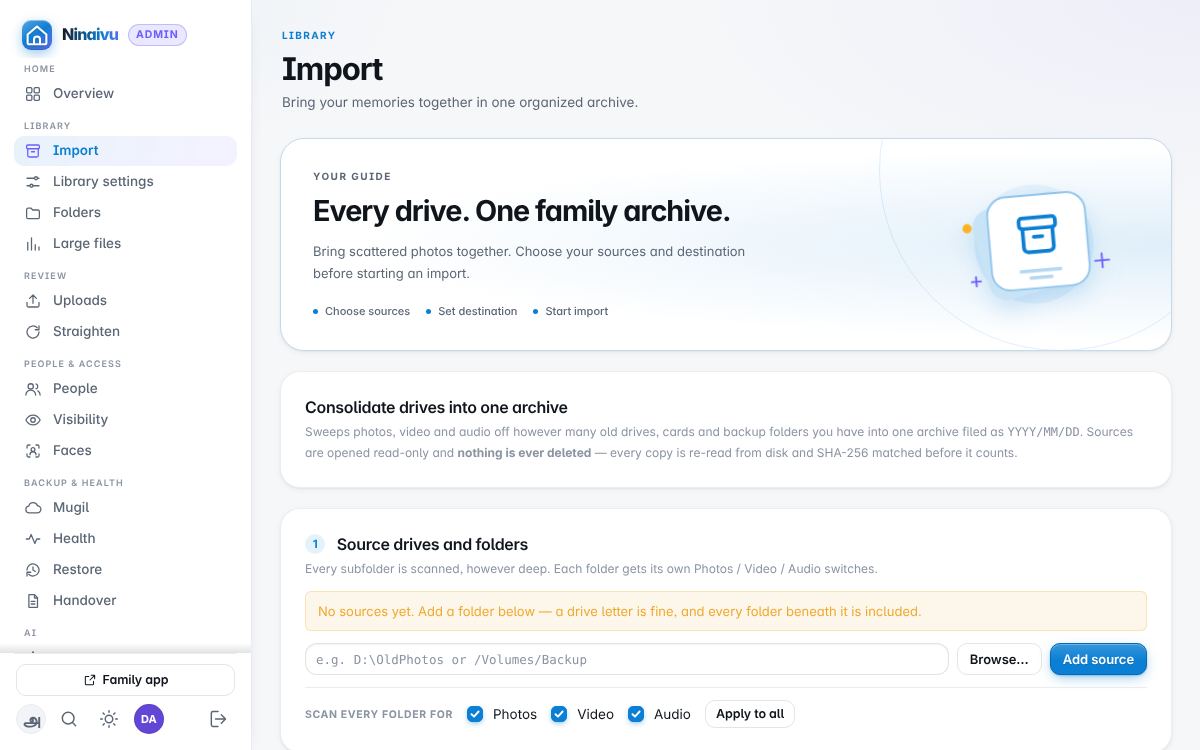
The first Library page on purpose: a library usually begins with old drives,
memory cards and backup folders, swept into one archive laid out as
YYYY/MM/DD. Every file is hashed on the way in and read back to verify the
copy; duplicates are recognised by content and left in place, logged;
sources are only ever read. Dry run decides everything and writes
nothing. Start consolidation also resumes: an interrupted run picks up where it
stopped. Files under 60 KB — icons, thumbnails — are left alone.
An import cut short by a restart of Ninaivu or the computer carries on by itself as soon as Ninaivu is back; the page and the activity strip say resuming after restart, with how many files were already done, and the count shows the files found so far. Refreshing the console stays on the page that was open, so the numbers are not lost.
A file that fails for a passing reason (still being written by a sync app, open in another program, a drive slow to answer) is tried once more, 30 seconds after the rest. Whatever still fails is in the Errors list, with the reason in plain words first: the file was locked or Ninaivu needs Full Disk Access, the file was gone, the drive reported a read error, the name is too long for the archive drive, the file is larger than a FAT32 drive allows. Retry failed, or the next Start, tries them again. Clips a camera or dashcam protected on its card (locked, on a Mac) are copied like any other file; the copy is not locked and the card is left as it was. When the archive drive fills up, the import stops with the archive drive is full, keeps what was copied and verified, and carries on with Start once there is room.
When the run has finished the page offers to add the archive to the library. A Google Photos Takeout export comes across whole: its sidecars give the dates, places and descriptions, and once the archive is indexed the page offers to make its albums from the copies it kept. The Archive Guardian re-reads a rotating sample of archived files every day and says when one has changed.
Library settings
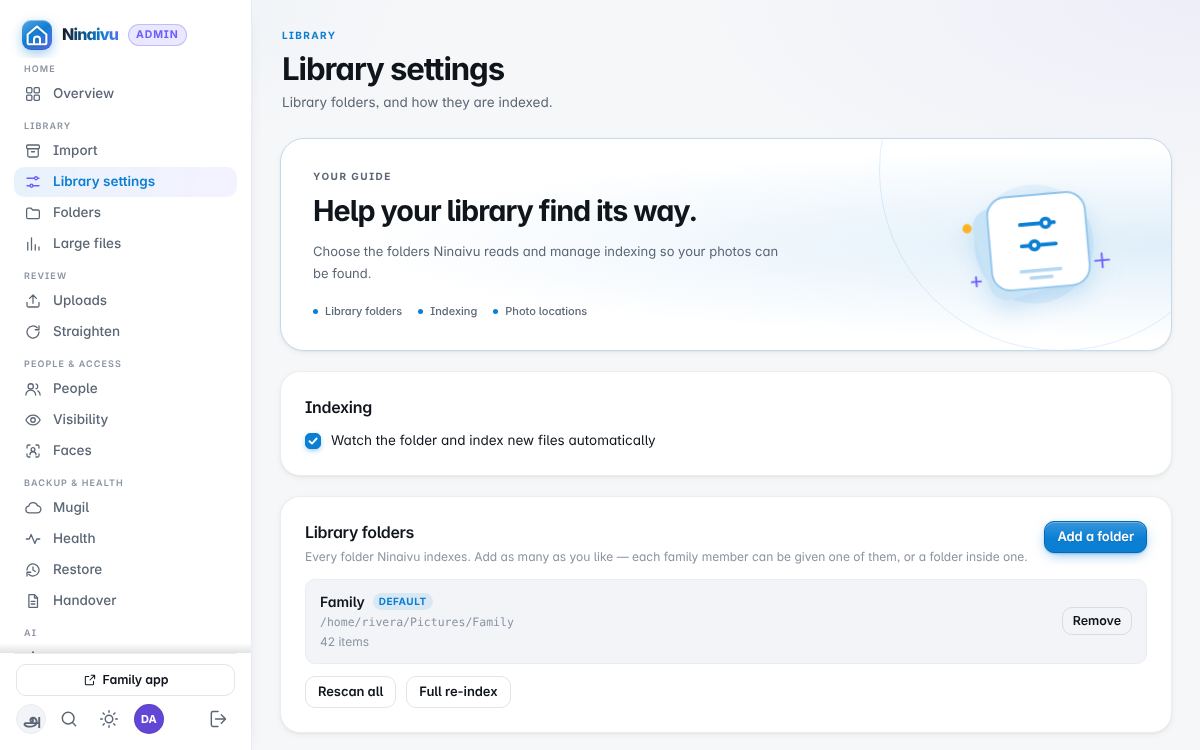
Which folders make up the library, and how they are indexed: whether Ninaivu watches them for changes, whether hidden files are indexed, what the scan works out by itself. Add as many folders as you like; a folder on a drive that is unplugged stays a library folder and the gallery says so rather than showing nothing.
Where the dates come from: the camera's own date first, then the
container's metadata, then a Takeout sidecar, then a date in the file name,
then a YYYY/MM/DD folder path, and only then the file's own creation or
modification time. The viewer's details panel says which one was used.
When a library folder cannot be written — an NTFS drive on a Mac, say —
edited copies, approved uploads and phone backups go to ~/Pictures/Ninaivu
instead, which joins the library on first use.
Folders
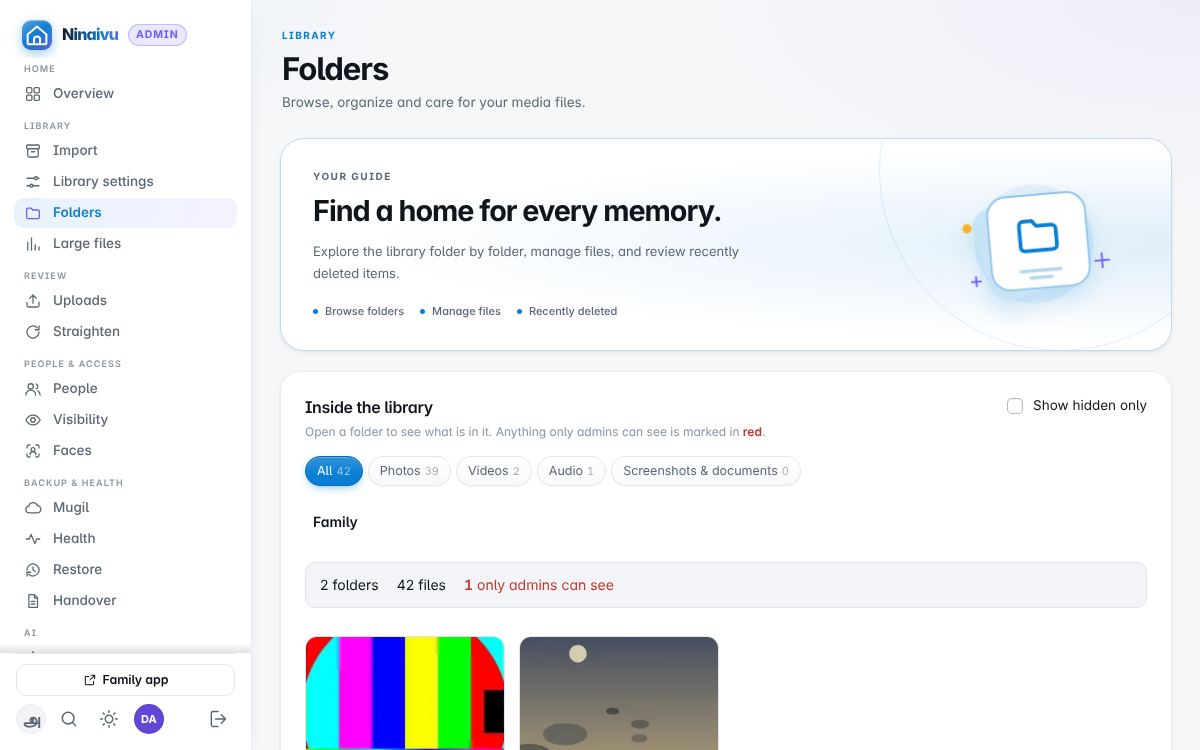
The library as folders, with what is in each and each folder's visibility,
and the recycle bin. Deleting in Ninaivu moves a file into a _deleted
folder beside the library, where it can be put back with its faces and
albums intact. Nothing is erased for good unless you empty the bin here
(it asks first) or set a number of days on Advanced settings.
Large files
The files taking the most space, to look over once and mark as reviewed.
Tick the files you want (or Choose all) and use the buttons above the list.
For videos, Compress (recommended) saves a smaller MP4 copy beside the
original and leaves the original as it is, and Replace
which puts the smaller copy in the original's place after checking it plays,
keeping the original in _deleted/_originals; Replace asks for your password.
Both need ffmpeg and are greyed out without it.
Review
Uploads
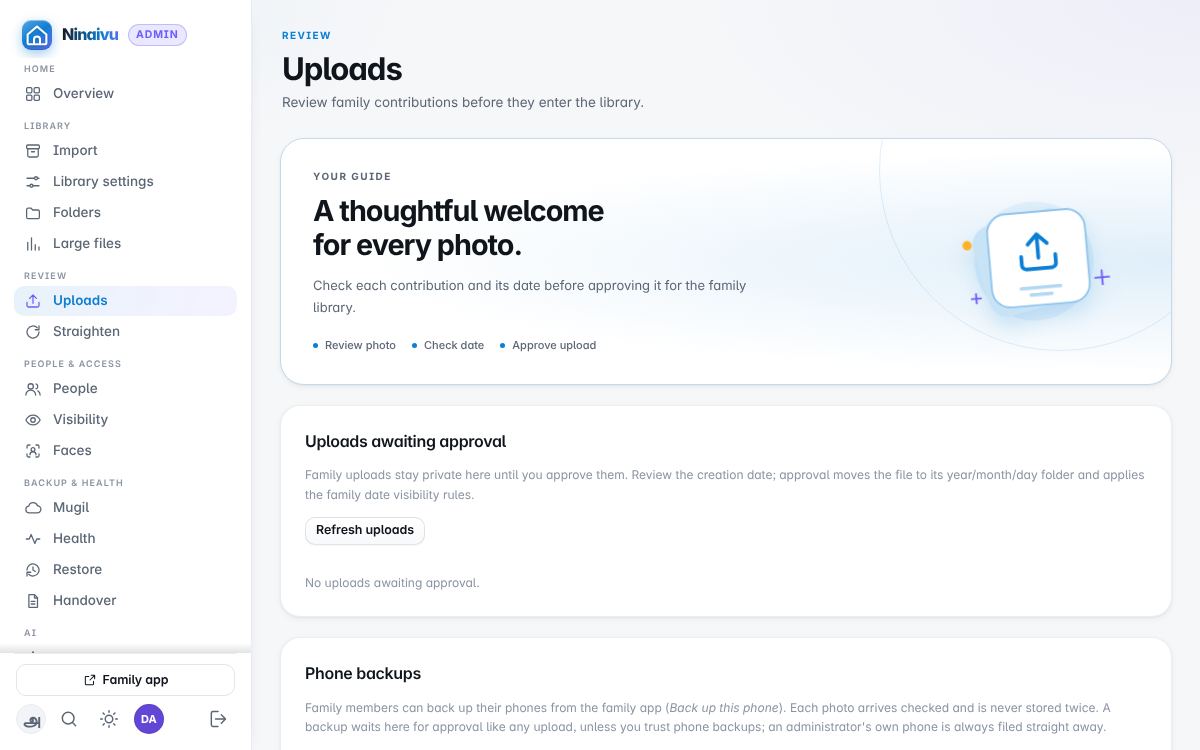
Photographs the family sent from their phones, and edits saved in Sudar, waiting to be filed or refused; and the phones that have sent backups. Nothing a family member sends joins the library without passing here, unless you tick Trust phone backups; an administrator's own phone skips the review.
Straighten
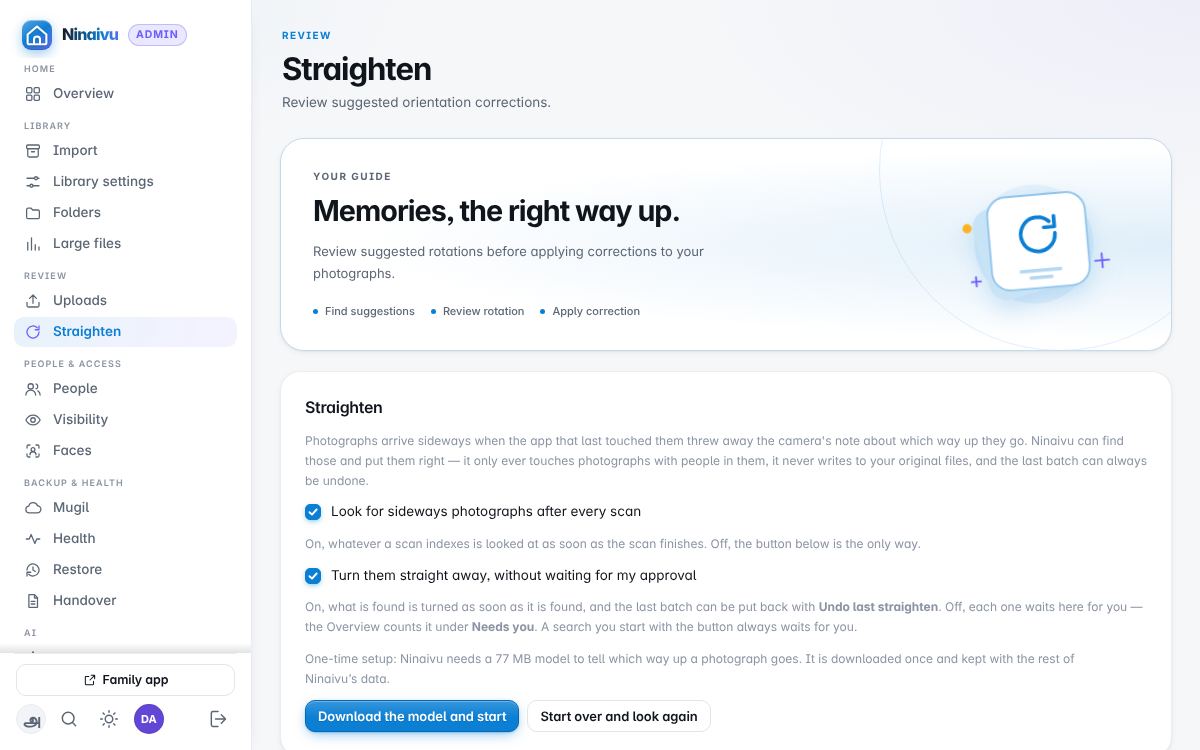
Photographs the model thinks are on their side, strongest guess first, each shown the way it would be left. Click one to skip it; Straighten them turns the rest in one batch. It only ever suggests a quarter turn, and by default only for photographs with a person in them — a found face is a second witness that this way up is the way a person stands. By default the looking happens by itself after every scan, over what the scan indexed, and what it finds is turned straight away, as one batch. Undo puts back the last batch exactly, thumbnails included. Two switches at the top change this: one turns the automatic looking off, leaving the button; the other keeps what it finds here for approval instead of turning it. A search started with the button always waits for you.
People & access
People
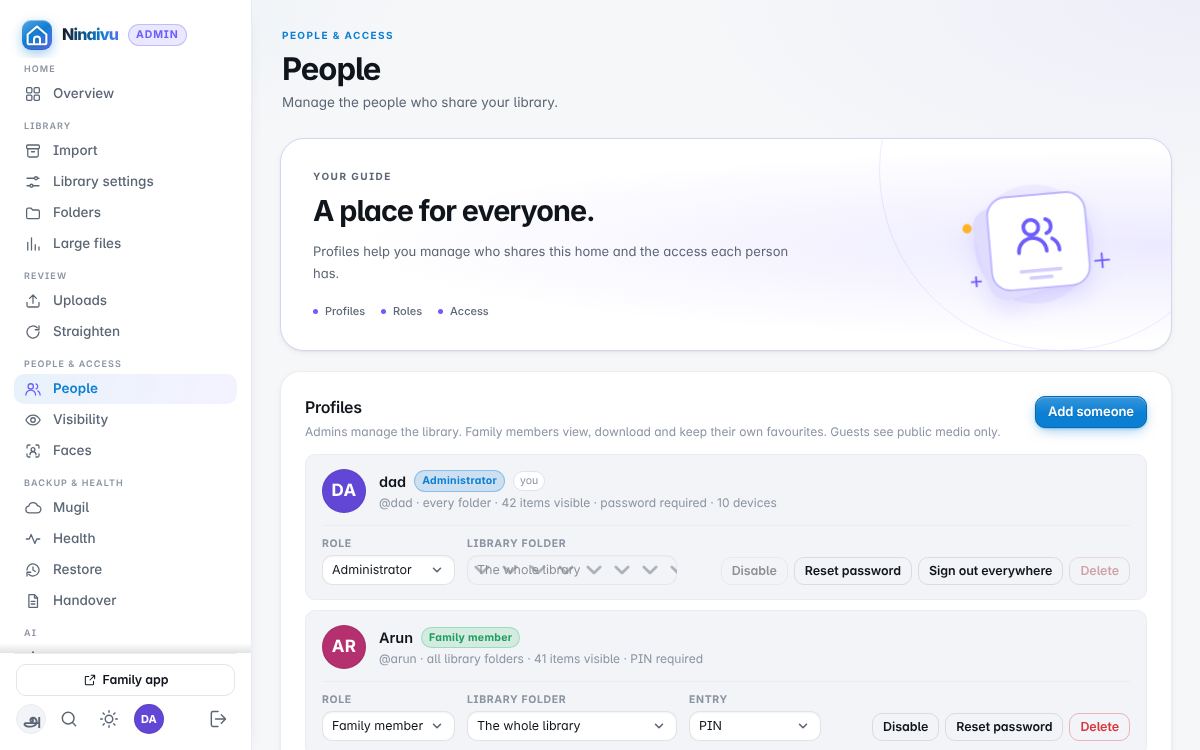
The household's profiles: one administrator, family members, guests. Each has a role, a way in (a PIN, a password, or a tap), and optionally a folder of their own — any library folder, or any folder inside one. Assignment and visibility stack, and the narrower always wins: a guest given a folder still sees only what is public in it.
Disable is reversible and keeps the person's favourites; delete is final and removes the profile, its favourites and every open session. Neither touches a photograph. You cannot delete yourself or the last administrator. Disabling a profile or resetting its password ends its sessions everywhere at once.
Somebody who pressed Forgot your password? on the sign-in screen is marked asked for help signing in, here and on the Overview, until they have a new password or PIN. Reset password gives a temporary one to tell them; they choose their own at their next sign-in. A forgotten administrator password, with no other administrator to reset it, is set from the Control Panel's Reset a password… on the computer Ninaivu runs on. The steps.
Visibility
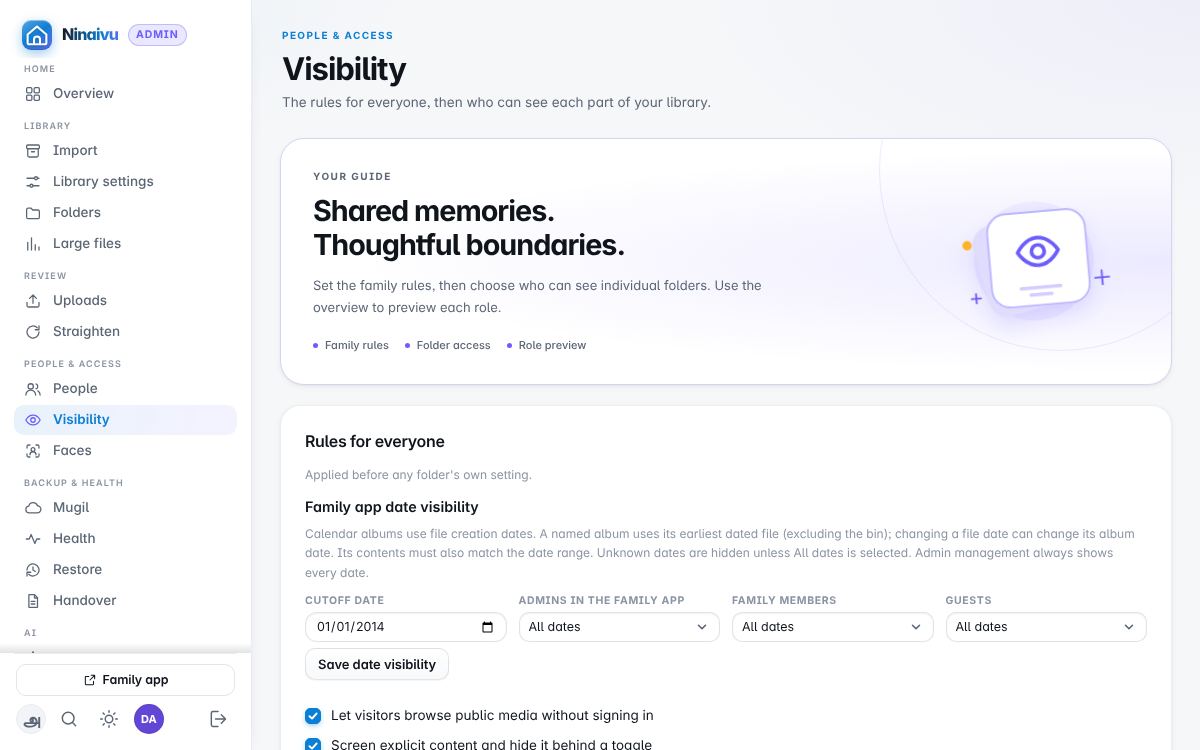
Who sees what. The rules for everyone come first — whether visitors may browse without signing in, whether explicit content is screened, how far back in time each role may look — and then each folder's own setting: everyone, family, or admins only. New media is family until somebody says otherwise, so nothing reaches a guest by accident. A folder's setting is remembered as a rule, so files scanned into it later inherit it. Setting a folder rewrites everything beneath it, so the previous state is written down first and every change can be undone in one step.
Faces
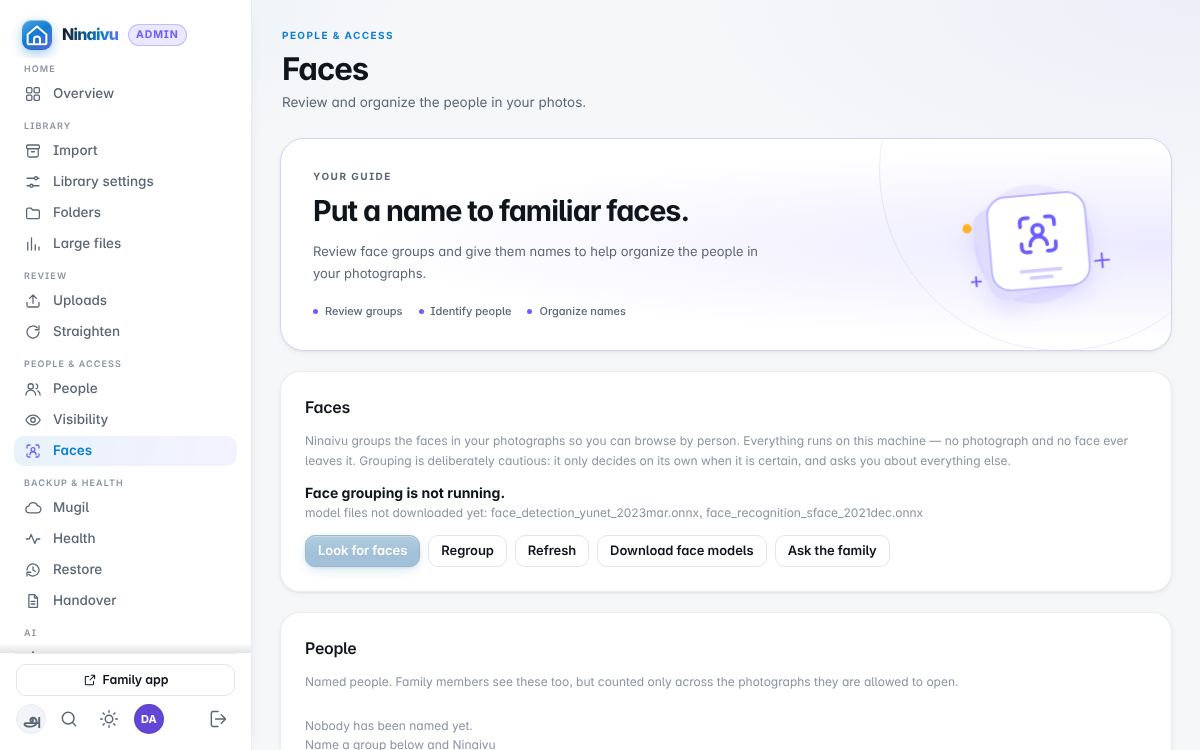
The people the face matcher found, grouped. Name one face and the rest of its group follow; groups waiting for a name are listed for a quick pass. Faces smaller than 50 pixels are skipped on purpose, which is the trade that keeps the ones it shows reliable. Faces are found and matched on this computer; the names travel only inside Mugil's encrypted copy of the index.
Backup & health
Mugil
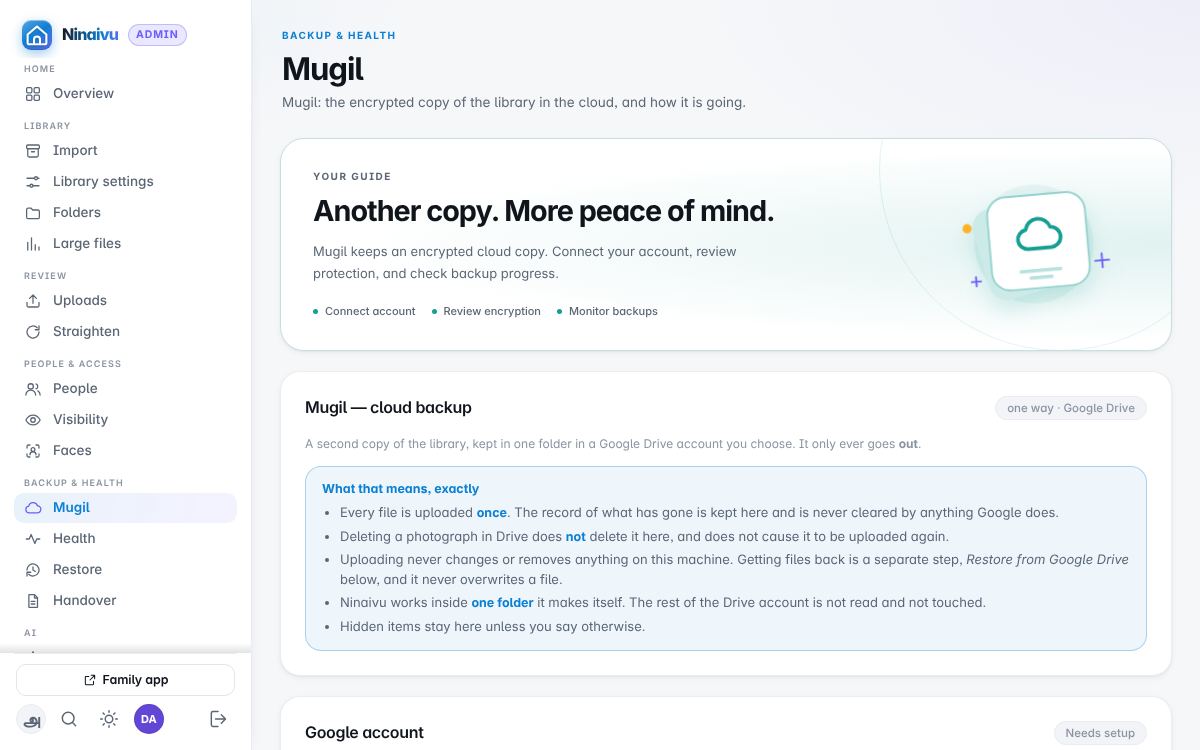
Mugil (முகில், cloud): the encrypted copy of the library on Google Drive — the account, the encryption key and its recovery file (nothing is uploaded until the key is made), what is sent and what is kept back, speed and hours, and Test restores: the weekly test that the copy restores, with its history. More on backup.
Health
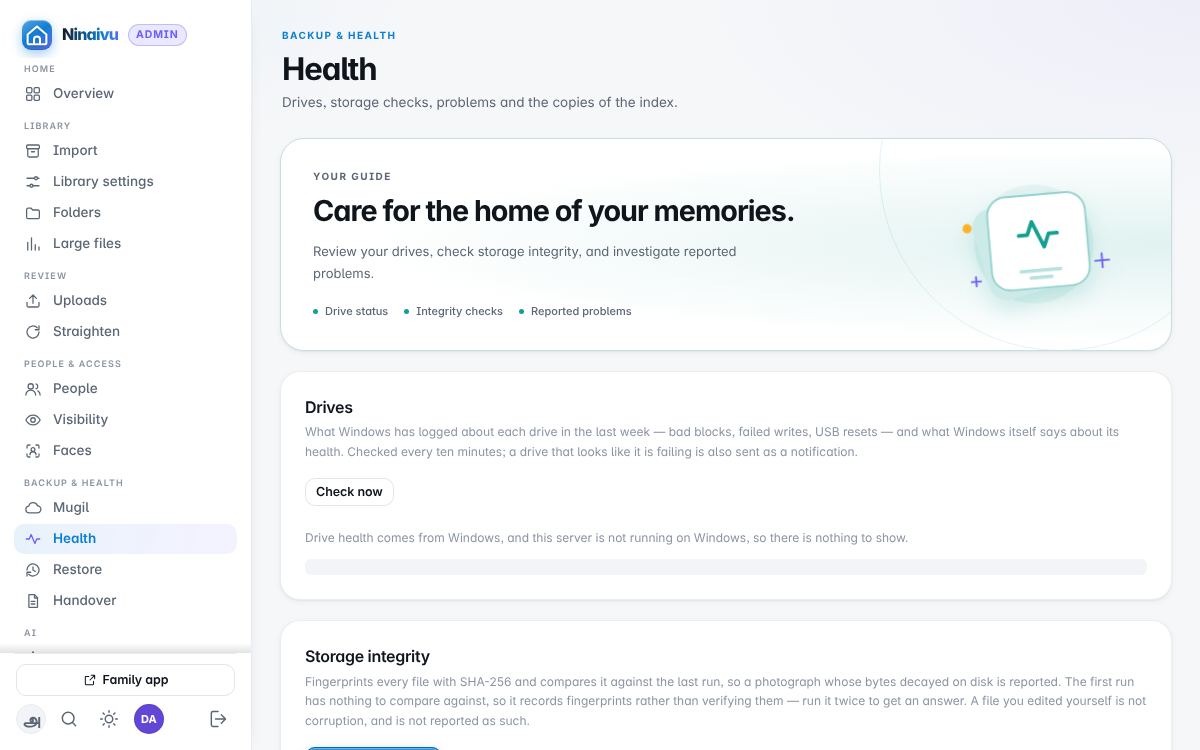
The drives and their SMART state, the storage check that reads every file back against its fingerprint, anything that went wrong since the last start, the copies of the index kept on this computer, and how the household is told when something needs them — by email or a webhook. The storage check, which takes hours on a large library, steps aside while new photographs are indexed and then carries on. A photograph, once a week: on the morning you choose, Ninaivu picks the best photograph from that day in a past year and emails it to the family; a day with nothing worth sending stays quiet.
Restore
Bringing photographs back from the cloud copy, in three steps: what to bring back, where to put it, and the encryption key. Nothing here ever overwrites a file that is already there.
AI
AI models
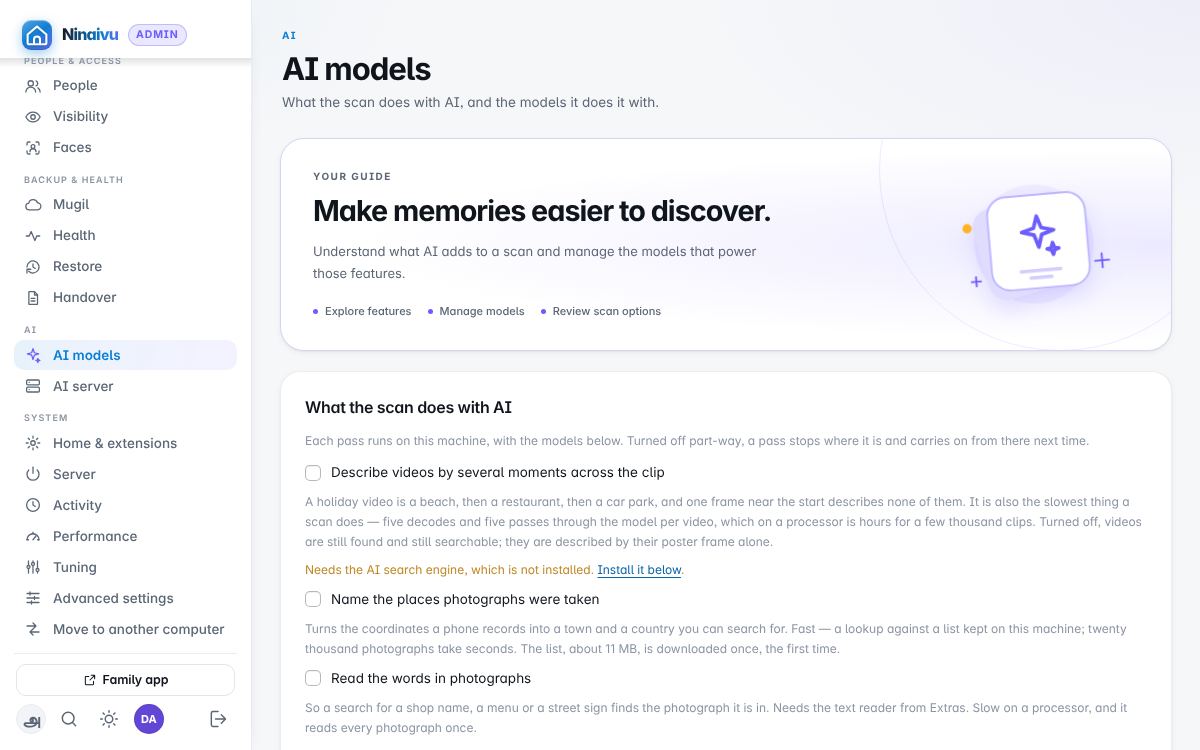
What the scan does with AI — naming places, reading text, finding faces, describing videos by several moments — each switch saying which model it needs and whether that model is here, then the models themselves with their downloads. Everything on this page runs on this machine. More on AI.
AI server
For a household with a second, stronger computer running ComfyUI: hand the heavy jobs to it. This page belongs to the Creative Studio extension and appears only while it is on.
System
Home & extensions
This home's name and the version of Ninaivu; the extensions installed, each saying on its switch what it does when it is on, and whether family members may send photographs to one that goes outside the house; and Extras, the optional packages — search by description among them.
Server
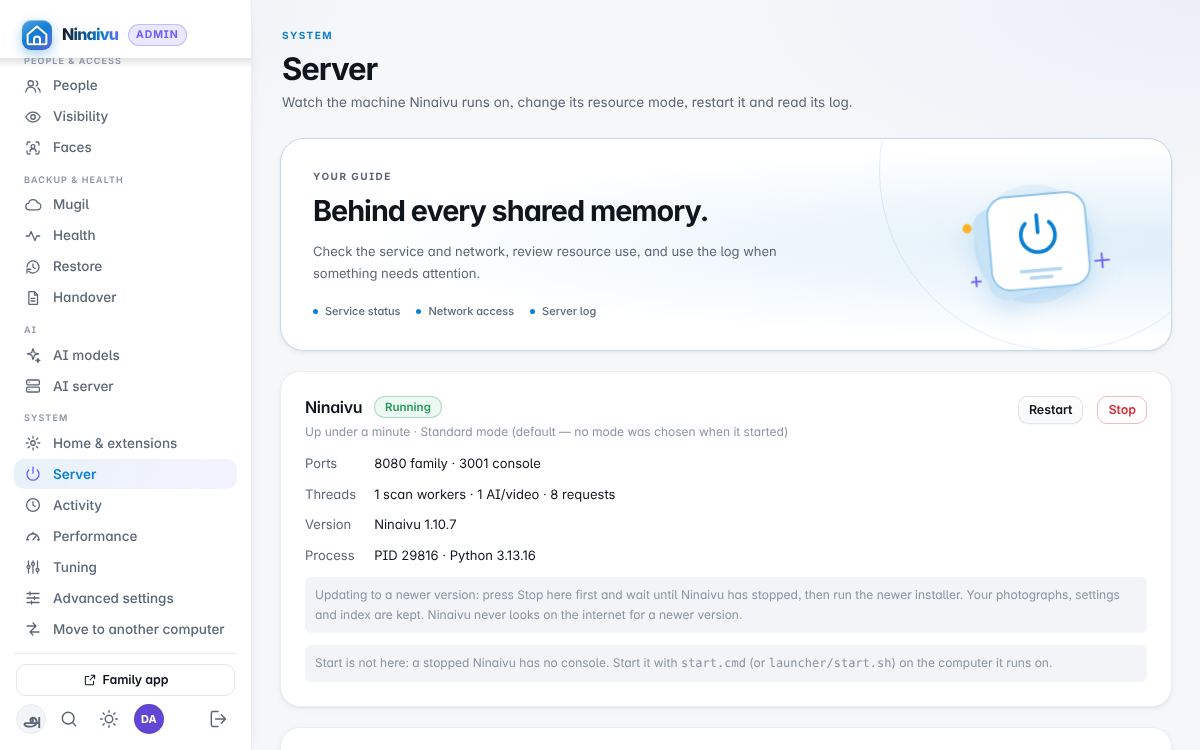
Whether Ninaivu is running and where it answers, its version (press Stop
here before installing a newer one), the addresses to give the household, Away from home — how the
household reaches Ninaivu from outside (remote access) —
Network access and whether the console may be opened from other devices
at home too (it never opens from the internet; see remote
access), the resource mode (standard, performance, power-saving), a
restart, the log, the HTTPS switch (off by default; turning it on restarts
Ninaivu), and, while on HTTPS, the certificate. The ports are shown here; they
are set when Ninaivu starts (--port, --admin-port).
Activity
What is running now and who is using the computer, so the backup and the scans can make way for the household. Balanced gives way to video playback; quiet waits whenever anyone is using the app; overnight keeps the heavy work for the night hours and runs it flat out then.
Performance
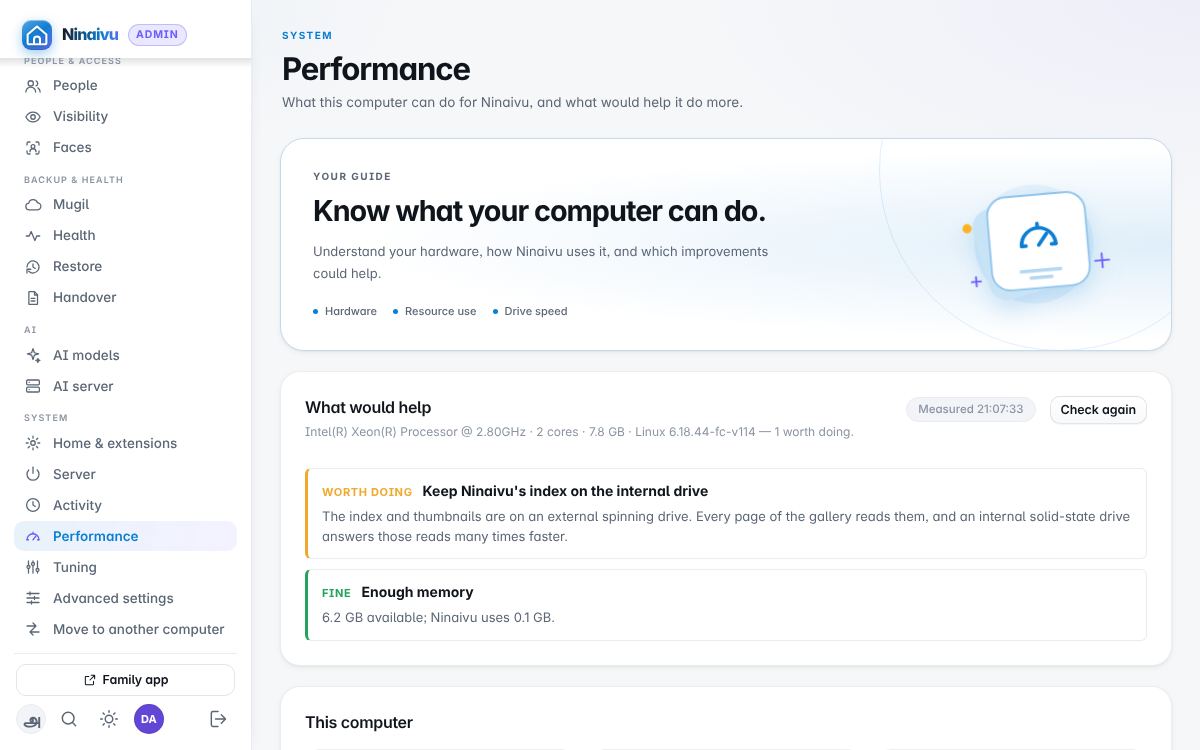
What this computer can do for Ninaivu — which kind of computer it is (Basic or Full), the processor, memory, graphics, drives, how fast the last scans went, what is waiting — and what would help it do more.
Tuning
How hard Ninaivu works this computer. At every start it measures the processor, memory, graphics and drives and picks a profile: Small box (a small or low-power computer), Everyday computer or Powerful computer. Peak performance, which uses every core and up to 95% of the memory, is only chosen by hand. The page shows what was measured, what the numbers are expected to use, and every number with where it came from; each can be changed, or put back to automatic. The details.
Advanced settings
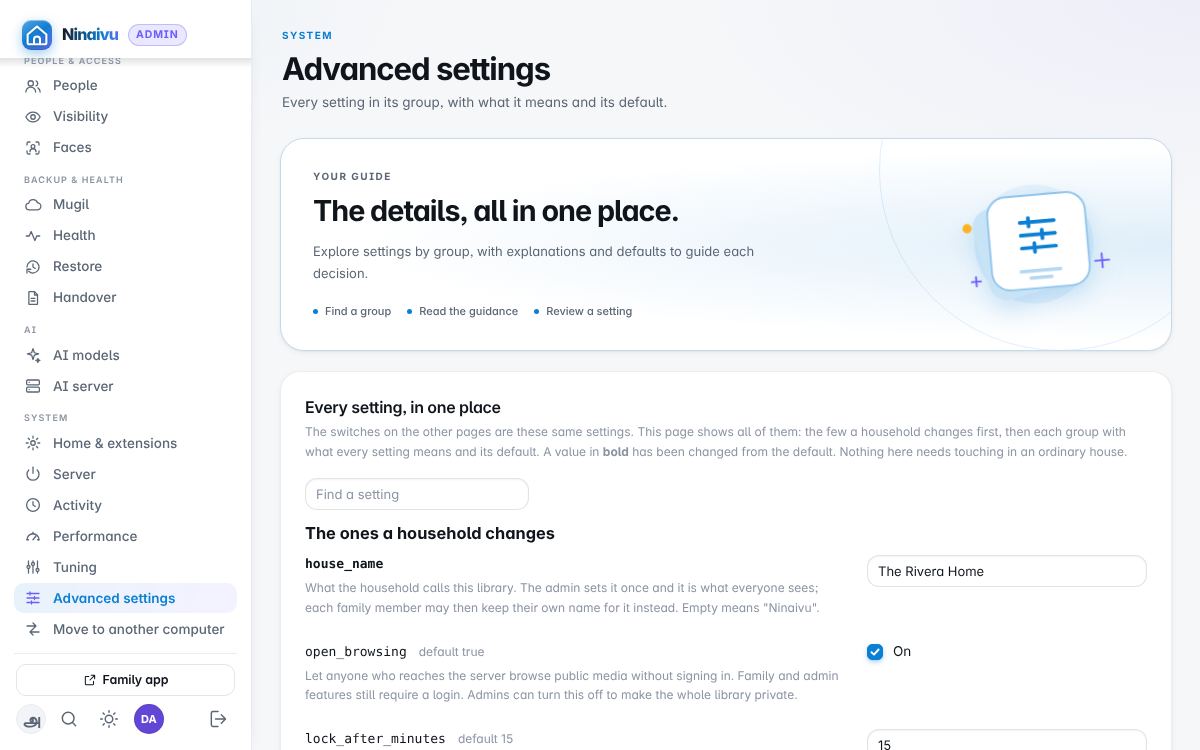
Every setting Ninaivu has, in six groups, with what each means and its default. The switches on the other pages are these same settings. Nothing here needs touching in an ordinary house.
Move to another computer
Moving Ninaivu, or telling it the library has moved, without re-indexing everything. The details.
The command line
Nothing in this guide needs a terminal: the portable downloads, the Control Panel and the console do it all. The command-line options, the maintenance commands (a copy of the index, a restore, a new password for a forgotten administrator) and the environment variables are in the technical administrator guide, in English.